New product hub
Overview
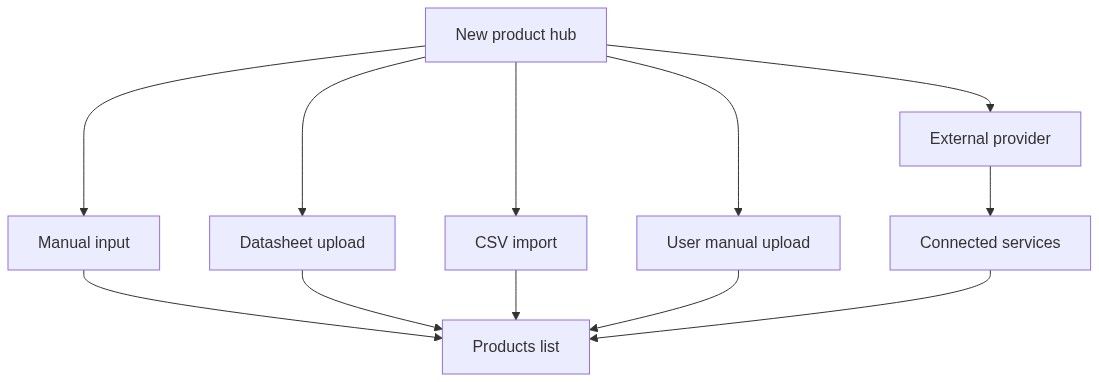
The New team product page is the entry point for every way to add products to your team catalog. Instead of one form, Tendersight presents a grid of cards — each opens a dedicated import workflow: manual typing, datasheet PDF, CSV spreadsheet, user manual, or external provider sync.
Your catalog feeds technical offer automapping, attribute mapping, and financial offer import. Populating inventory during onboarding (Team overview → Import inventory, step 4) means pursuit modules have specifications to match against authority requirements from day one.
Tip: Before you pick a module, confirm you have:
Selected the correct active team (catalog is per team)
Created product categories if you import dozens of SKUs
Identified your source format — PDF datasheet, spreadsheet, manual, or live shop
Checked AI credits and plan features if you want Enable AI processing
Verified external product sync limits (shown on products list)
Important: Each module creates team products — not notice products. Authority buyer requirements on notices are separate; your catalog is what you offer on bids.
Five paths into your catalog
Tendersight supports multiple ways to add products. All successful flows end on the products list; upload-based flows also use the Processing tasks panel until background jobs finish.
Path A — Datasheet upload (spec-heavy PDFs)
Use when manufacturer datasheets contain structured technical tables.
Click Datasheet on the hub.
Upload one or more PDF, Word, Excel, or CSV files.
Assign categories (optional).
Submit with or without AI processing.
See Datasheet upload.
Path B — User manual upload (instruction documents)
Use when you have operator manuals or installation guides instead of formal spec sheets.
Click User manual on the hub.
Upload PDF or Word manuals.
Assign categories; submit.
See User manual upload.
Path C — Manual input (one product, typed)
Use for one-off items, prototypes, or few fields you know by heart.
Click Manual input on the hub.
Fill basic info, specifications, optional datasheet.
Save — immediate or AI processing.
See Manual product create.
Path D — CSV list of products (bulk spreadsheet)
Use for ERP, PIM, or Excel exports with many SKUs.
Click CSV list of products on the hub.
Upload one
.csvfile; map columns.Assign categories per row; submit.
See CSV import.
Path E — External provider (ongoing sync)
Use when products already live in WooCommerce, GoMag, or a configured feed.
Click External provider on the hub.
Configure connection on Connected services.
Products sync on integration schedule — not instant one-off import.
See Connected services.
Which method should I use?
How to open
Page heading: New team product
Browser tab title: Products in {team name}
Hub layout
Header
Module cards grid
Responsive: 1 column mobile, 2 tablet, 3 desktop.
Hover on enabled cards: brand-colored border. Soon cards: 50% opacity, not clickable.
Default module order
Note: Module order and availability load dynamically. Soon modules may appear greyed out. Experimental modules may change behavior.
Loading state
Typically under one second.
Shared patterns across upload modules
Most upload paths follow the same arc:
Upload files (or fill form for manual)
Assign categories (optional but recommended)
Review & process — AI toggle + submit
Redirect to products list — track Processing tasks until complete
Manual input creates immediately (or starts AI refinement if enabled).
Enable AI processing (all paths)
Toggle on final steps: Enable AI processing
Requires subscription feature Team products sourced from connected sources and available AI credits. If unavailable: "Your current subscription doesn't include AI-assisted product processing."
Benefits listed on the toggle:
Highlighted specs in technical offer for authority review
Improved automapping of inventory to requirements
Attribute-level mapping in pursuits
Caution: Disabling AI on sparse source documents often yields thin specifications — you will edit more in the Content sheet afterward.
Card badges explained
Permissions
Subscription limits apply to AI processing and external sync counts — not which card you can open.
Best practices
Create categories first for bulk imports — product categories.
Prefer datasheet upload for manufacturer PDFs — highest spec fidelity for technical offers.
Use CSV for ERP exports; map Product name and Description at minimum.
Enable AI processing when your plan includes it — pursuit modules benefit significantly.
External provider is for ongoing sync, not ad-hoc batches — use CSV or datasheet for one-time loads.
Open specifications viewer after AI imports to verify extraction quality.
What you can and cannot do
You can
Add multiple products in one datasheet, manual batch, or CSV session
Return to the hub from upload wizards via Back
Mix file types in datasheet upload (PDF + Excel in one batch)
Create products without categories and assign later via Quick assign
You cannot
Create notice buyer products from this hub — that is notice Products extraction
Undo a submitted import from the hub — delete products on the list if needed
Click Soon modules until released
FAQ
Why don't I see all five cards?
Modules load dynamically. Disabled modules are omitted. Soon modules may appear greyed out.
Can I add multiple products at once?
Yes — Datasheet (multiple files), User manual (multiple files), or CSV (many rows). Manual input creates one product per save.
Does External provider create products immediately?
No — it opens Connected services for WooCommerce, GoMag, or feeds. Sync runs on integration schedule.
What happens if I click Back on a module?
Upload modules return to this hub. Manual input returns to the products list.
Are Experimental modules safe for production?
They work but may change. Prefer stable modules for mission-critical catalog data.
Which path is fastest for one SKU?
Manual input — single page, no wizard.
Troubleshooting
Related articles
Products list
Manual product create
Datasheet upload
CSV import
User manual upload
Product categories
Specifications viewer
Connected services
Team product entity
Was this helpful?
Still need help? Ask the team