Edit alert
Overview
There is no separate edit page for alert rulesets. You manage existing alerts from the Alerts list via the spotlight sheet — a wide right panel with three tabs. From the Overview tab you update name, enabled state, and notification frequency inline. Matching filter rules are view-only after creation.
Operational edits (pause during vacation, rename for clarity, switch digest from daily to weekly) happen here. Criteria changes require a new ruleset — plan filter migrations deliberately to avoid duplicate emails.
Tip: Before you change a production ruleset, confirm:
You know whether you need pause (enabled off) vs delete vs new ruleset
Teammates rely on this ruleset name in runbooks — rename communicates clearly
If filters must change, you will disable old ruleset first then create replacement
You reviewed Activity tab to judge if noise or silence drove the change
Important: Scope (personal vs team) and filter rules cannot be edited after creation. See Create alert for immutable fields.
How edit fits in the alert lifecycle
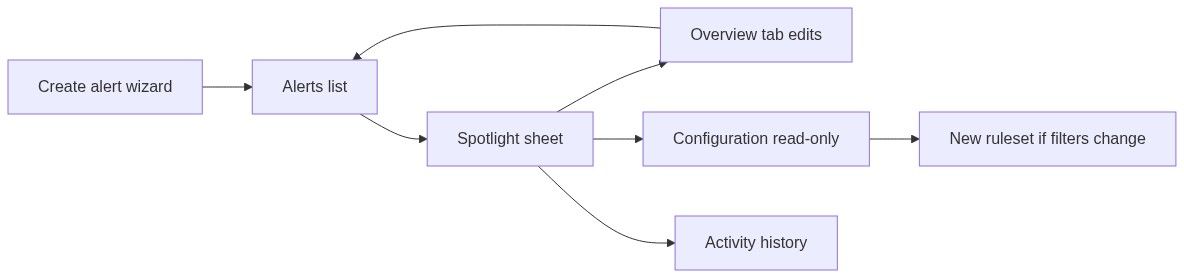
How to open the spotlight sheet
The spotlight opens as a right sheet (max width ~3xl, scrollable). Closing the sheet returns to the grid without losing list position.
Spotlight sheet structure
Overview tab — editable fields
Save behavior
Change one or more fields.
Click Save.
Team-scoped rulesets: colleagues see name/frequency/enabled changes immediately.
Read-only context on Overview
Display-only fields may include:
Owner scope (personal vs team)
Creator identity
Created date
Match statistics summary
Configuration tab — read only
Shows cumulative rule logic for the ruleset:
Important: You cannot add, remove, or modify filters from this tab. To change criteria, create a new ruleset and disable or delete the old one.
Use Configuration as the spec when manually copying filters into a replacement ruleset.
Activity tab
Trigger history for this ruleset:
Using Activity to tune strategy
Delete ruleset
Deletion is not inside the spotlight sheet.
On Alerts list, find the card.
Open ⋮ menu → Remove.
Confirm via destructive toast pattern.
Ruleset gone — cannot undo.
Recreate via Create alert if removed by mistake.
What you can vs cannot edit
Alternative workflow — recreate ruleset
When filters must change:
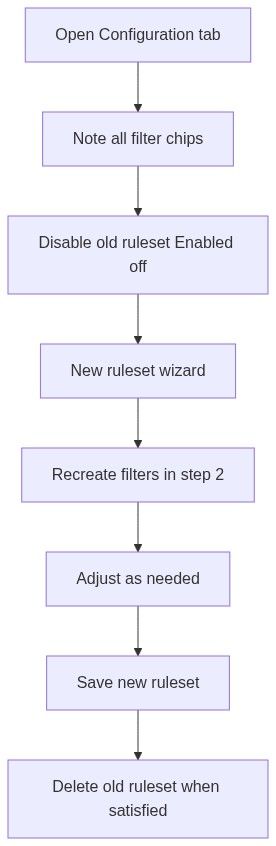
Open Configuration tab — document existing filters.
Overview → set Enabled off on old ruleset → Save (stops duplicate emails).
Click New ruleset on alerts list.
Copy criteria manually in step 2; adjust CPV, value, or keywords.
Save new ruleset; monitor Activity.
Remove old ruleset from card menu when confident.
Shortcut: on any exemplar notice, Receive alerts on Notice overview seeds a fresh ruleset quickly.
Permissions
Assistant updates
The Home or dashboard assistant may update an alert's name, enabled, or frequency on your behalf — not filter rules. After assistant actions, open Configuration to confirm criteria unchanged.
Troubleshooting
FAQ
Why isn't there a full edit wizard?
Creation uses three steps for initial setup; ongoing edits focus on operational toggles teams change often (pause, rename, digest).
Will disabling stop emails immediately?
Enabled off stops new trigger processing. An email already batched in a digest may still arrive for the current cycle.
Can I change a personal ruleset to team scope?
No. Create a new team-scoped ruleset and delete the personal one.
Can I edit filters if I am team admin?
No — filter mutation is not exposed for any role in current UI.
How do I temporarily pause without losing history?
Enabled off preserves ruleset and Activity history. Re-enable when ready.
Does rename affect match logic?
No — only display and email subject context; filters unchanged.
Related articles
Alert rulesets (list)
Create alert
Notice overview
Notices browse
Was this helpful?
Still need help? Ask the team