Notice lots
Overview
The Lots tab breaks a notice into subdivided procurement parts. Each lot may carry its own estimated value, deadline, CPV code, quantity, and award criteria. When a tender is multi-lot, this tab is where you decide which lots to bid before pursuit work begins — and how to align technical and financial offers with lot boundaries later.
Lot data is read-only official publication content. Your pursuit modules reference lot structure; editing offers in a pursuit does not change what appears on this tab.
Tip: Before you commit team capacity to a multi-lot tender, confirm:
You opened the latest notice version (obsolete banner cleared on overview)
You reviewed every lot card — not only the overview preview
You compared award criteria weights across lots (price vs quality emphasis)
You checked whether lot-level deadlines differ from the notice-level deadline
You read procedure rules in documents for whether partial bids (one lot only) are allowed
Caution: Tendersight displays what the source published. Legal eligibility to bid one lot, all lots, or mandatory combinations is your assessment from tender documents — not inferred automatically from the UI.
How lots fit in bid planning
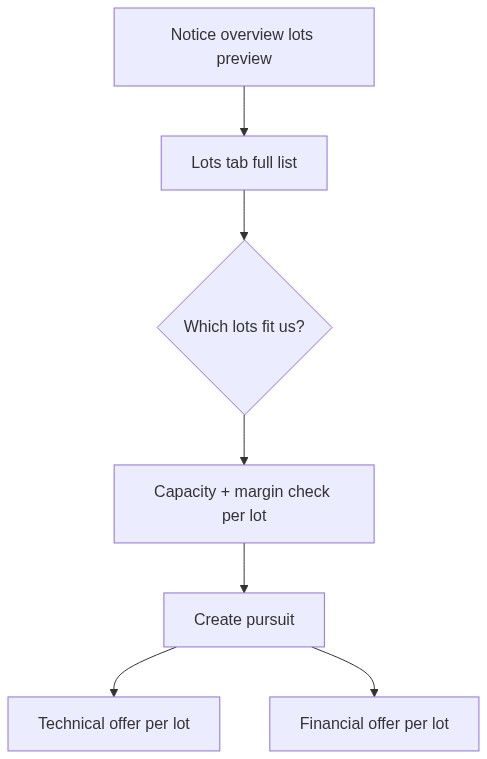
See Notice (Tender) for notice vs pursuit boundaries.
How to open the Lots tab
Path A — Tab navigation
Open any notice detail page (Notice overview or deep link).
In the tab bar, click Lots.
Path B — From overview preview
On Notice overview, scroll to the Lots collapsible section.
Click View all to open the full Lots tab.
Shared notice chrome appears on every tab: command bar, tab navigation (Overview · Lots · Participants · Versions timeline · Products), and obsolete-version banner when applicable.
Page layout and states
The lots page shows a vertical list of lot cards. When many lots exist, pagination loads additional pages at the bottom.
Empty does not always mean a sync failure. Some single-lot procedures embed lot information only in the overview description — the dedicated tab may show no cards while overview still describes one logical lot.
The Participants tab may be disabled when participant count is zero (same as on other notice tabs).
Each lot card — field by field
Header row
Value and dates
Details block
Different CPV codes per lot affect qualification, subcontracting, and alert keyword relevance.
Award criteria
Per-lot evaluation breakdown:
Criterion name and description
Weight percentage
Visual list or ring chart summarizing weights
Empty criteria → dedicated empty message on that lot
Click criterion rows to expand full detail. Compare weight rings across lots to prioritize lots aligned with your strengths (heavy price weight vs quality/technical weight).
Lot detail sheet (from overview)
On Notice overview, clicking a lot name in the preview section opens a side sheet with extended fields for that lot.
The Lots tab is authoritative for large multi-lot procedures.
Pagination
When lot count exceeds one page:
Scroll to the pagination bar at the bottom.
Change page — next set of lot cards loads.
Filter and sort state on other tabs is unaffected.
If overview shows a lot count that does not match visible cards, navigate pages — you may be on page 1 of several.
Strategic workflows
Lot selection before pursuit
Open Lots tab (or overview preview for small sets).
For each lot, note value, deadline, CPV, and award weights.
Mark lots that match capacity, margin targets, and technical fit.
Read tender documents for partial bid and mandatory lot bundle rules.
Click Create pursuit from command bar when decision is made.
In pursuit Technical offer and Financial offer, map lines per lot division.

Award criteria comparison
Lots with high price weight favor aggressive pricing; lots with high quality or technical weight favor solution strength. Use rings or weight lists to rank lots before assigning senior estimators.
CPV per lot
When lots span multiple CPV families, update internal qualification checklists per lot. Company statistics and authority history still apply at notice level, but CPV per lot drives product-category fit.
Downstream in pursuit workspace
Lot data stays read-only from the official source. Corrections belong in your pursuit content, not on the notice record.
Relationship to participants
After award, Notice participants may list bidders at notice level. Some jurisdictions publish lot-level winners in source data — cross-check participants tab and documents when lots award independently.
What you can and cannot do
You can
Browse all lots with pagination
Open lot detail sheet from overview
Compare award criteria weights across lots
Link to pursuit creation from shared command bar
You cannot
Edit lot values, names, or CPV on this tab
Select lots in the UI to "partially" create a pursuit (lot choice is workflow in pursuit modules + your process)
Export lots as a separate CSV from this tab (use document download or product export where available)
Troubleshooting
FAQ
The tender is single-lot but the Lots tab is empty — is that a bug?
Not necessarily. Some publications embed the only lot in the overview description. Read overview Lots preview and documents.
Can I bid only one lot?
Depends on procedure rules in tender documents. Tendersight shows lot structure; eligibility is your legal/operational assessment.
Do lot deadlines override the notice deadline?
When the source publishes lot-level deadlines, cards show them. Otherwise the notice-level deadline on overview applies.
Does creating a pursuit lock me to specific lots?
Pursuit creation links to the notice, not a subset of lots. You scope offers inside pursuit modules according to your bid strategy.
Why do two lots show the same CPV?
Buyers sometimes split scope under one classification. Read lot names and quantities for real differentiation.
Related articles
Notice overview
Notice (Tender)
Notice participants
Notice products
Notice versions timeline
Create pursuit from notice
Was this helpful?
Still need help? Ask the team