Core concepts
Overview
Before you open individual features, learn the building blocks that appear everywhere in Tendersight. They explain why a notice you found under Opportunities shows up again under Analytics, why your questionnaire does not change the public tender record, and why switching teams changes what the Home assistant remembers.
Tendersight is organized around two planes of data:
Market plane — official procurement intelligence (notices, authorities, competitor companies). Read-only for everyone.
Workspace plane — your team's bid preparation (pursuits, catalog, requirements). Editable by your team.
Between those planes sit monitoring and analytics — alerts, statistics, dashboards — that help you decide whether to bid before you invest effort in a pursuit.
This article is the conceptual map. Use it when terminology feels ambiguous, when you are unsure which sidebar section to open, or when you need to explain Tendersight to a new colleague.
Tip: Bookmark this page and Terminology glossary. Return here whenever notice, tender, pursuit, or project appear in the same conversation — they are the most common source of confusion.
Account, team, and active team
Three layers define who you are and whose data you are looking at.
Important: Tendersight does not have a separate "Company account." Your organization's legal identity lives in Team → Settings as the company profile. The team is the unit of collaboration, billing, and pursuit ownership.
Before you create a pursuit
The active team in the sidebar switcher is the team that will own the bid
Team settings — company profile, legal representative, banking — are saved at least once
You know your plan's pursuit limit (see Subscription and limits)
Switching teams changes assistant chat history, scheduled tasks, credit balance, and which pursuit button appears on a notice (Create pursuit vs Go to pursuit). See Team and Permissions and access.
Market plane vs workspace plane
Separating these planes prevents the most common mistake: trying to edit a notice as if it were your bid workspace.
Market plane (read-only)
Data imported from official sources (SEAP, TED, national portals). Shared across all customers. Updated when the authority publishes or sync runs.
You cannot edit title, deadline, CPV, documents, or authority fields on market records.
Workspace plane (your team's data)
You can edit pursuit content, products, requirement status, and team settings.
Monitoring layer (configure rules, read market output)
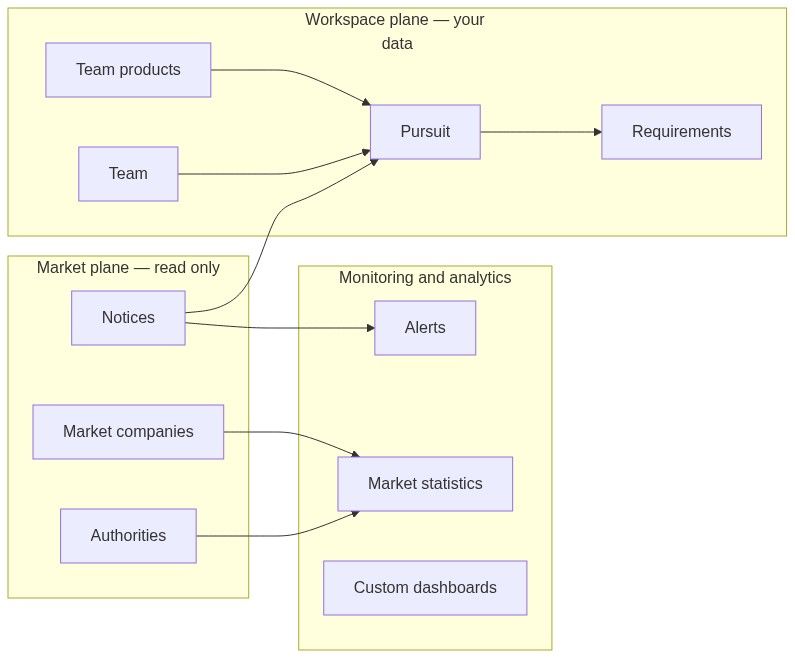
Caution: Analytics and Opportunities both display notices, but neither creates pursuits for you. Create pursuit happens on the notice page or via New standalone pursuit. See How information flows.
Notice, tender, pursuit, and project
Notice type (CN, SCN, CAN, etc.) describes the kind of publication — not a different object.
Creating a pursuit copies key facts at that moment (title, deadline, value, country, CPV, authority). After creation, pursuit data is independent — amendments to the notice do not automatically rewrite your pursuit.
See Notice (Tender) and Pursuit.
Two paths to a pursuit
Both paths land in the same pursuit workspace.
Path A — From a notice (recommended when indexed)
Use when the opportunity is under Opportunities → Notices or arrived via an alert.
Open the notice; confirm latest version, deadline, lots, and documents.
Click Create pursuit (or Go to pursuit if your active team already has one).
Pick the owning team if you belong to more than one.
Land on Pursuit overview; card appears on Team → Pursuits kanban.
Create pursuit from notice
Path B — Standalone (no catalog notice)
Use for email RFPs, unmonitored portals, or private opportunities.
Team → Pursuits → New standalone pursuit.
Wizard: Details → Documents → Review — you enter title, type, country, uploads.
Board shows Source: standalone; no automatic official identifier link.
Create standalone pursuit
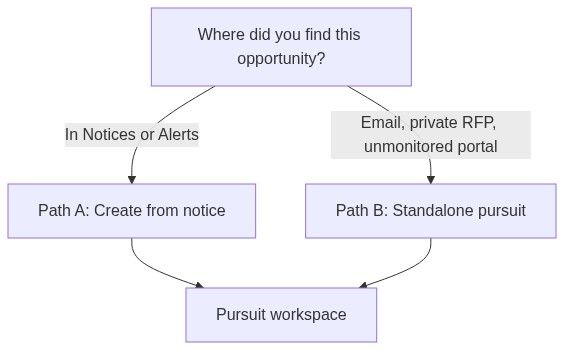
Caution: Standalone when the notice is indexed loses version tracking, official links, and one-click Go to pursuit. Prefer Path A whenever the tender is in the catalog.
Opportunities vs Analytics

Opportunities surfaces tenders you can act on today. Analytics aggregates history — win rates, CPV share, authority spend, competitor participation. Drilling from Analytics into a tender row opens the same read-only notice; analytics never mutates pursuits.
Two meanings of "company"
Tip: Team settings = yours. Companies directory = market research.
When team profile fiscal ID matches a directory company, analytics unlock Strategic gap and Head to head widgets. Without a match, market research still works; personalized gap analysis does not.
See Company (two meanings) and Company statistics.
Product categories vs requirement categories
Both are "categories" but serve different domains. Mixing them breaks automapping and SME routing.
Important: A product category does not classify a requirement. Requirement categories are set during in-depth analysis or in the questionnaire.
Docs: Product categories · Requirement categories
Roles and ownership
Pursuit access is team-scoped. Creating a pursuit requires an available subscription slot. Dashboard boards add separate visibility layers (private, shared, team, public). See Permissions and access, Transfer ownership.
AI touchpoints
Important: AI output is not guaranteed accurate. The assistant shows: "AI-generated content. Accuracy is not guaranteed." Verify requirements, mappings, and filled PDFs before submission.
Credits are per active team. See Working with AI assistant and Billing.
Subscription and limits
Blocked actions show upgrade or payment-required UI.
Tip: Confirm credits and pursuit slots before in-depth analysis or bulk import — mid-bid upgrade prompts are disruptive.
Billing is per team. Open Team → Billing for plan, payment, invoices, and credit packs.
How concepts connect (end-to-end)
Discover — Notices or alert match.
Research — optional authority / company stats.
Prepare — settings, inventory.
Create pursuit — Path A (notice) or Path B (standalone).
Execute — in-depth analysis → questionnaire → offers → documents → final checkup.
Submit externally — export and submit on the official portal (Tendersight does not publish bids).
First-time path: Getting started → First pursuit.
FAQ
What is the difference between account and team?
Account = personal login. Team = shared workspace (pursuits, products, billing). One account, many teams.
What does "active team" affect?
Assistant sessions, tasks, catalog, billing, credits, and Create pursuit vs Go to pursuit on notices.
Can I edit a notice?
No — read-only market data. Editable work lives in the pursuit.
Pursuit vs project?
Same workspace. Project appears in some translations; pursuit is the primary English label.
Can two teams share one pursuit?
No — one pursuit per team per notice. Teams cannot see each other's questionnaire or pricing.
Opportunities or Analytics — where do I create a pursuit?
Open the notice and click Create pursuit, or use New standalone pursuit under Team → Pursuits.
Why are there two kinds of categories?
Product categories = catalog. Requirement categories = compliance items. Different objects, different workflows.
Which "company" should I complete first?
Company profile in Team settings — before the first pursuit — for auto-fill and AI filler.
Related articles
Platform overview
How information flows
Terminology glossary
Permissions and access
Team
Notice (Tender)
Pursuit
Company (two meanings)
Was this helpful?
Still need help? Ask the team