Team
Overview
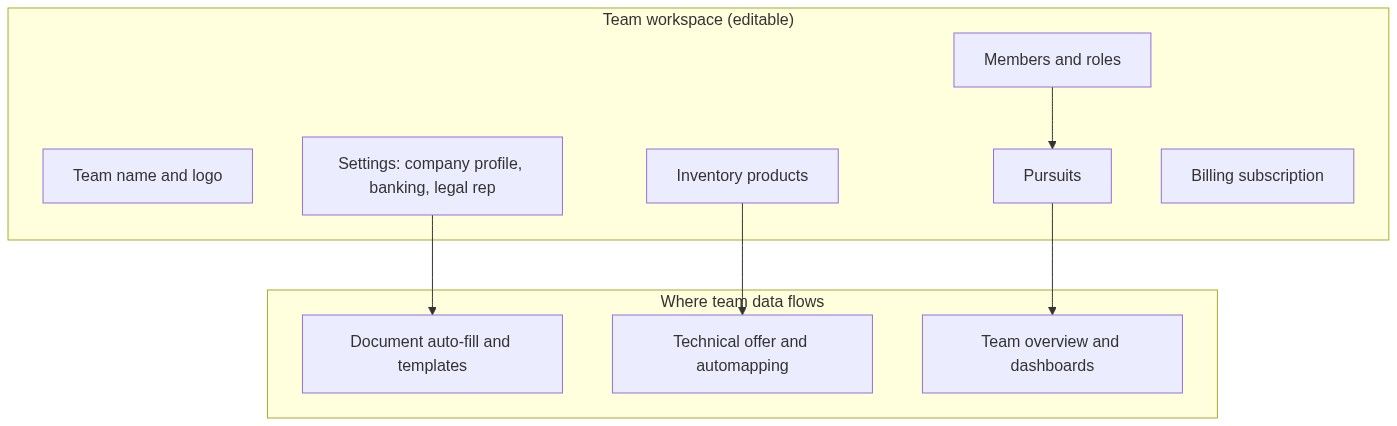
A team is your organization's shared workspace in Tendersight — the unit where colleagues collaborate on pursuits, maintain product inventory, store legal entity details, and manage billing. Everything your bidding group needs to win tenders lives inside a team: active and past bids, your catalog, company settings, members, and integrations.
When you register, Tendersight creates a default team for you (often named like "{First name}'s team"). You become owner and can invite colleagues, create additional teams for subsidiaries or client engagements, and switch between teams in the sidebar. The active team controls what the Home assistant, pursuits kanban, inventory, and billing portal show at any moment.
A team is not the same as a market company in Analytics. Your team's company profile (under Team → Settings) is the legal entity you edit for document auto-fill. Analytics → Companies lists competitors and suppliers from public procurement data — read-only intelligence. See Company for both meanings.
Tip: Before you create your first pursuit, confirm you have:
Selected the correct active team in the sidebar (if you belong to more than one)
Completed Team → Settings — company profile, legal representative, and banking
Imported or synced Team → Inventory → Products if you rely on technical offer automapping
Invited colleagues who will own requirements or offers
The more complete your team setup is before bid work starts, the less manual rework you face in generated documents and AI-assisted workflows.
Important: Pursuits, products, settings, and billing are scoped to one team. Switching teams changes your entire working context — you do not see another team's pursuits or catalog while a different team is active. Always confirm the sidebar team name before Create pursuit on a notice.
Team, organisation, and company profile — what each word means
Tendersight uses several labels for related ideas. They confuse new users until you separate workspace from legal identity.
There is no separate "Company" workspace. Team is the unit of collaboration and billing.
When to use one team vs many teams
Creating a team automatically switches your active context to the new team.
Caution: Do not mix two legal entities in one team. Company profile, banking, and generated documents assume a single bidding entity. Use separate teams when VAT numbers, bank accounts, or ownership differ.
Where teams appear in the product
The global app sidebar shows a subset: Overview, Pursuits, Inventory, Billing, Settings. Pages like Users, Scheduled tasks, Integrations, and Knowledge live under the inner sidebar when you open any team management page.
Team management navigation
When you open any team page (for example Team → Overview), a resizable inner sidebar organizes features:
Owner-only items (visible when you are team owner):
Transfer ownership
Delete team
See Team overview for the getting-started checklist and KPI cards on Dashboard.
Key team data and where it is used
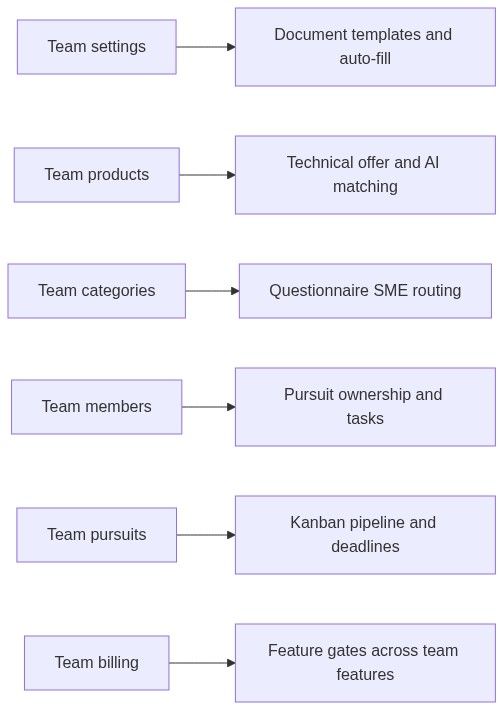
Dashboard and checklist impact
Incomplete team settings surface on:
Team overview → Getting started checklist (Configure team settings, Import inventory)
Dashboard notices prompting you to finish company profile
Home assistant suggestions ("Review our team legal representative and banking details")
The checklist disappears when all required steps are complete. Recommended order: alerts → settings (all three sections) → inventory → first pursuit. See Getting started workflow.
Common team workflows
Create a new team
Open the sidebar team switcher.
Click New team.
Enter a team name.
You become owner; active context switches to the new team.
Switch active team
Open the sidebar team switcher.
Select another team from the list.
Pursuits, inventory, assistant context, and billing views update immediately.
Invite a member
Go to Team management → Management → Users (labeled Team members on screen).
Click Add member.
Enter email and assign roles (Administrator or Collaborator).
The invitee accepts via email and joins the team.
See Team members for role changes and removal.
Complete team settings before bidding
Go to Team → Settings (or inner nav Management → Settings).
Save Company profile, Legal representative, and Banking information — all three are required for "settings complete."
Optionally upload Company logo and configure Product quotation sources.
See Company profile, Legal representative, and Banking information.
Delete or transfer a team (owner only)
Transfer ownership: Management nav → Transfer ownership — assign a new owner before you leave.
Delete team: Management nav → Delete team — irreversible; removes all pursuits, products, documents, and member associations.
See Delete team.
Members and roles
Both Administrator and Collaborator can work on pursuits and catalog. Destructive team actions (delete team) require ownership. A member can hold multiple roles; the Users page shows combined labels like "Administrator +1".
Members appear downstream as:
Pursuit owner on Team → Pursuits kanban filters
Requirement assignees in the questionnaire
Collaboration feed actors on team overview
Team context in Opportunities and Analytics
Team context affects monitoring and intelligence — but notices and authority profiles remain global read-only data.
Switch active team before creating team-scoped alerts or interpreting personalized competitive analytics.
What you can do with a team (and what you cannot)
You can
Create and switch between teams you own or were invited to
Invite members and assign roles
Manage pursuits, inventory, settings, and integrations inside the workspace
Subscribe and manage billing per team
Scope alerts and dashboards to the team
You cannot
Share one pursuit between two teams on the same notice (each team gets its own pursuit)
Edit market company records under Analytics → Companies from team settings
Recover a deleted team — deletion is permanent
Merge two teams into one — migrate pursuits and catalog manually if needed
Permissions snapshot
Full matrix: Permissions and access.
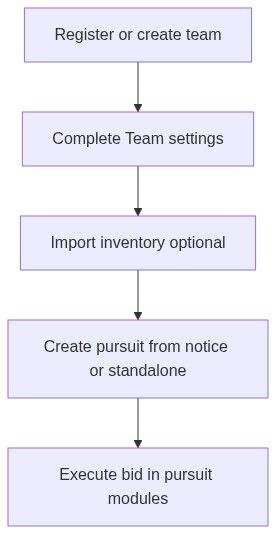
Recommended workflow (new team → first pursuit)
Register — default team is created; you are owner.
Configure settings — company profile, legal representative, banking.
Import inventory — manual, CSV, datasheet, or integration sync.
Configure alerts — optional but recommended for pipeline feed.
Invite colleagues — assign owners before heavy questionnaire work.
Create pursuit — from a notice or standalone; confirm active team first.
Execute — questionnaire → offers → documents → final checkup.
See First pursuit workflow.
FAQ
Can I belong to multiple teams?
Yes. Switch between them in the sidebar team switcher. Each team has its own pursuits, products, settings, and billing.
What is a "personal team"?
The default team created at registration. It works like any other team; the name often includes your first name.
Do collaborators see everything administrators see?
Both roles can work on pursuits and inventory. Delete team and transfer ownership are owner-only. Billing may require explicit permission.
Does changing the team name affect old pursuits?
The display name updates across the workspace. Pursuit content and historical records are unchanged.
Why do I see the wrong team's pursuits?
Your active team in the sidebar does not match the team that owns those bids. Switch teams before creating or opening pursuits.
Must I complete settings before creating a pursuit?
Strongly recommended. Without company profile, legal representative, and banking, generated documents and AI filler leave "complete" placeholders from day one.
Can I delete a team I do not own?
No. Ask the owner to transfer ownership or delete the team.
What happens when a team is deleted?
All pursuits, products, documents, settings, integrations, and member associations for that workspace are removed permanently.
Is billing per user or per team?
Per team. Each team has its own subscription, credits, and feature limits.
Related articles
Team overview
Team settings
Team members
Delete team
Team product
Pursuit
Company (your profile vs market)
Getting started workflow
Core concepts
Was this helpful?
Still need help? Ask the team