In-depth analysis — create
Overview
In-depth analysis is the AI reconnaissance step that reads selected pursuit documents and extracts requirements, award criteria, specifications, products, risks, BOQ structure, and other entities into structured pursuit data. The create flow is where you choose which PDFs to analyze and which extraction categories to run — before you review results on In-depth analysis — results.
This is typically the first analytical step after tender documents are in the pursuit. Skipping analysis is possible for tiny RFPs, but you will manually build the Questionnaire instead.
Tip: Before you click Start analysis, confirm you have:
Uploaded the complete tender package to Documents library
Selected the latest authority documents (not obsolete amendment PDFs)
Enough AI credits on your subscription for the run size
Chosen categories you will actually import (avoid running everything on first pass)
Set pursuit type and country on Overview
Important: Analysis consumes credits per plan. Large multi-hundred-page packages take longer — you can leave and return; task history is preserved.
When this flow appears
Sidebar: Reconnaissance → In-depth analysis.
Layout
Full-height proposal editor layout:

Document selection
Browse checklist of files from pursuit library (and notice-synced docs when notice-backed).
Select one or more PDFs to include in this run.
Use preview to confirm correct file — wrong volume wastes credits.
At least one document must be selected to enable Start analysis.
Notice-backed pursuits may pre-list authority documents — you still choose subset per run.
Extraction categories
Toggle categories allowed for your pursuit type configuration:
Some categories are always on; others depend on server configuration for your type × country.
Disabled categories cannot be enabled client-side — type or country may exclude them (e.g. products on some works profiles).
Caution: Enabling every category on a 2,000-page tender increases cost and time. Prefer focused passes: requirements first, products second.
Start analysis — numbered steps
Open Reconnaissance → In-depth analysis.
Select documents (minimum one).
Preview critical pages (optional but recommended).
Enable extraction categories for this pass.
Click Start analysis.
Wait for redirect to Results — task begins processing.
You may navigate away; return via sidebar to monitor progress.
While processing:
Billing and usage
Check plan credits before bulk re-runs after addenda.
Relationship to notice documents
Download latest notice documents before analysis if sync added new files.
Downstream workflow
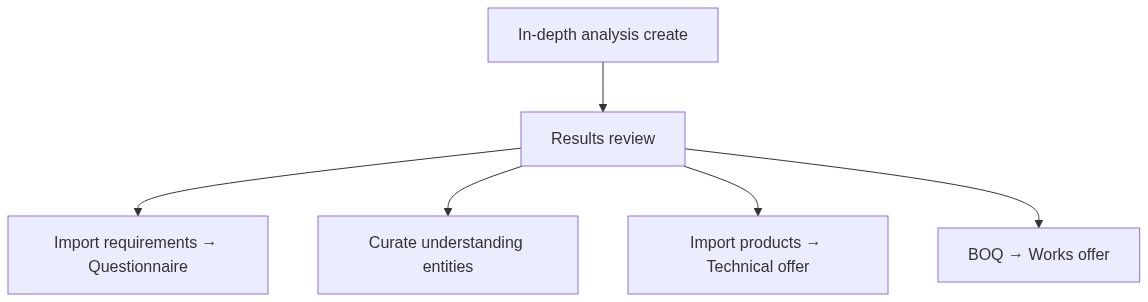
See First pursuit workflow Phase 5.
Edge cases
What you cannot do in create flow
Analyze documents not in pursuit library
Edit extracted text before task runs (review on results page)
Run analysis on notice without pursuit (create pursuit first)
FAQ
How long does analysis take?
Minutes to hours by page count and queue load — monitor on results page.
Can I add documents mid-run?
Not to active task — stop and start new analysis with expanded set.
Does analysis replace reading the tender?
No. Always verify critical requirements via source pills on results.
Works pursuit — no products category?
Expected — use BOQ extraction path to Works offer.
Will analysis update the public notice?
No. Extractions are private to your pursuit.
Can I run analysis twice?
Yes — new task; curate duplicates before questionnaire import.
Related articles
In-depth analysis — results
Questionnaire
Documents library
Understanding
First pursuit workflow
Working with AI assistant
Was this helpful?
Still need help? Ask the team