Notice versions timeline
Overview
The Versions timeline shows how a notice evolved through official amendments — corrigenda, deadline extensions, scope changes, and superseding publications. Public buyers rarely publish once; bidding against outdated requirements is a common compliance failure. This tab makes the amendment chain visible so you always evaluate and create pursuits on the latest version.
The timeline is read-only structure from source linking. It does not diff PDF text inline; you download documents per version separately when requirements change materially.
Tip: Every time you return to a notice after days away, confirm:
Status badge says latest version (or green equivalent on this tab)
No yellow obsolete version banner on overview or other tabs
You opened the newest node in the graph before Create pursuit
You re-downloaded documents if any amendment published since your last visit
Your existing pursuit (if any) was updated manually after amendments
Caution: A pursuit links to the notice key at creation time. A newer version later does not auto-rewrite your questionnaire or offers. Review the timeline and update pursuit content yourself.
When the timeline matters
How to open the Versions timeline
Page layout
Uses the standard tender details layout: command bar, tab navigation, obsolescence warning when you view a superseded node.
Status badge (multi-version notices)
Single-version notice
When only one publication exists with no linked predecessors:
Notice not versioned empty state
Message explains no amendment history is available in Tendersight
This is normal for simple procedures — absence of a tree does not prove the buyer never amended outside linked data.
Multi-version timeline
Vertical timeline with orientation labels:
[ Newer ] | (graph tree of versions) | [ Older ]Graph tree (interactive):
Each node = one notice version (identifier, date, status hints)
Current node highlighted for the notice key you opened
Click a node navigates to that version's detail (same tab layout on the selected key)
Edges represent supersession / amendment relationships from source data
Some EU procedures produce branching trees (lot-specific corrigenda, partial updates). Click nodes to inspect each publication rather than assuming a single linear chain.
Obsolescence on other tabs
Even without opening this tab, other notice pages may show:
You are viewing an obsolete version of this tender.
The banner links here or opens a sheet listing superseding notices. Treat warnings seriously — documents and deadlines on obsolete versions may be wrong.
Recommended workflow
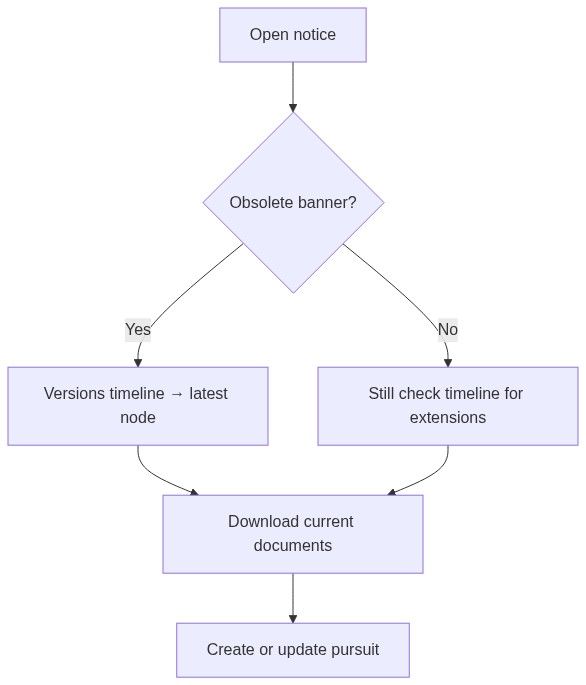
Open notice from browse, alert, or shared link.
If obsolete banner appears, click through to latest version immediately.
Open Versions timeline tab to see deadline extensions and amendment count.
Click older nodes only for historical research — not for pursuit creation.
On latest node, download documents on Notice overview.
Create pursuit only from latest version.
If pursuit already exists, update questionnaire and offers after material amendments.

Loading states
Relationship to pursuits
Review timeline inside pursuit planning when obsolescence surfaces in workspace UI (configuration-dependent). Always treat notice timeline as source of truth for current buyer requirements.
What you can and cannot do
You can
Navigate the full version graph
Open any historical version's detail pages
See at a glance whether your current URL is latest
You cannot
Compare document diffs inline on this tab
Merge versions manually in Tendersight
Force immediate sync from national portal
Edit version relationships
For diff work, download documents from each node separately and compare offline.
Permissions
Timeline viewing follows notice overview access — generally available to guests for structure. Document downloads on linked versions still require sign-in where applicable.
Troubleshooting
FAQ
Why does the tree look complex?
Some procedures publish branching amendments (per-lot corrigenda, partial replacements). The graph reflects source relationships — click nodes to inspect each.
Does latest always mean open for submission?
Latest means current publication in Tendersight. Status may still be Awarded, Cancelled, or Expired.
Can I compare PDF changes on this tab?
No inline diff. Download documents per version from overview and compare externally.
Will my pursuit automatically switch to the new version?
No. Create on latest when possible; otherwise update pursuit content manually after reviewing amendments.
An alert linked me to an old version — why?
Email deep links may reference the matched publication key at trigger time. Always check obsolescence banner when opening.
Single version empty state — can I trust there were no amendments?
Tendersight only shows linked version history. If you suspect unlinked corrigenda, verify on the official portal via Source on overview.
Related articles
Notice overview
Notice (Tender)
Create pursuit from notice
Notice products
Alert rulesets
Was this helpful?
Still need help? Ask the team