In-depth analysis — results
Overview
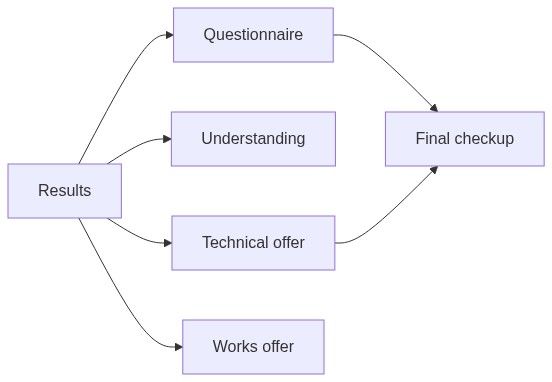
After you start an in-depth analysis task, the results page shows live extraction progress, categorized findings, source citations to tender pages, and task history. Use it to review and curate AI output before importing requirements into the Questionnaire, seeding Technical offer, or populating Understanding.
The results page is the bridge between raw authority PDFs and structured pursuit modules. Treat extractions as drafts — authority boilerplate, duplicates, and OCR errors are common.
Tip: Before bulk import, confirm you have:
Waited for task completed status (not partial stopped run)
Clicked source pills on the top 10 critical requirements
Deleted or skipped duplicate requirement cards
Enabled the right categories on create flow — re-run if a category is empty
Planned SME review using Requirement categories
Caution: Importing thousands of uncurated requirements clogs the questionnaire. Curate on results first.
When this page appears
Sidebar: Reconnaissance → In-depth analysis.
Layout

Document selection panel (left)
During active task, selection is locked — you cannot swap PDFs mid-run.
Analysis results panel (center)
Processing state
Completed state — item cards
Requirements may nest under source groups (document bundles).
Category panels (typical)
Document preview panel (right)
Always verify pass/fail requirements on source PDF before importing.
Key actions
Task history lists prior runs with status, document set, categories, timestamps.
Numbered workflow — requirements import
Open results — wait for completed.
Expand Requirements category.
Delete obvious boilerplate cards.
Click source pills on mandatory specs — confirm text.
Merge duplicates (same spec, two cards).
Import to questionnaire (bulk or selected).
Open Questionnaire — assign categories and reviewers.
Run auto-fill only after SME structure is set.
Numbered workflow — after tender addendum
Upload new PDFs to Documents library.
New analysis — select addendum + changed volumes only.
Compare new requirements to existing questionnaire rows.
Manually add net-new items; do not re-import entire matrix blindly.
Empty and error states
Downstream dependencies
Edge cases
FAQ
Can I edit extracted text on results page?
Curate by delete/deselect before import; fine edits happen in questionnaire.
Does stopping save partial results?
Some categories may retain partial data — prefer clean re-run for production bids.
How many tasks per pursuit?
History supports multiple; active view focuses on latest.
Will import overwrite questionnaire answers?
Import behavior adds rows — review merge strategy before bulk import.
Are credits refunded on failure?
Billing policy per plan — failed tasks may still consume partial credits.
Can assistant read results?
Yes in pursuit context — still verify sources on critical items.
Related articles
In-depth analysis — create
Questionnaire
Understanding
Documents library
First pursuit workflow
Pursuit overview
Was this helpful?
Still need help? Ask the team