Notice (Tender)
Overview
A notice is the public procurement opportunity as published by a contracting authority — the call for tenders your team researches before deciding to bid. Tendersight continuously imports notices from official European sources (SEAP, TED, and national portals) so you can search, monitor, compare, and open a bid workspace without retyping titles, deadlines, or document lists by hand.
A notice is not your bid. It is market intelligence: read-only, shared across every Tendersight customer, and updated only when the authority publishes a new version or when Tendersight syncs from the source. When your team decides to compete, you create a pursuit (your workspace — sometimes labeled project in the interface) on top of that notice. The notice stays in Opportunities; your answers, offers, and submission pack live in the pursuit.
Tip: Before you create a pursuit from a notice, confirm you have:
Opened the latest version of the notice (not an obsolete amendment)
Reviewed submission deadline, estimated value, and lots
Checked that tender documents are available (or that you have PDFs elsewhere)
Completed Team → Settings — company profile, legal representative, and banking — so generated forms auto-fill your legal data
Selected the correct active team if you belong to more than one
The more accurately you evaluate the notice up front, the smoother pursuit setup and compliance work will be later.
Important: Notices cannot be edited in Tendersight. If the authority changes the deadline or uploads new documents, you wait for the sync (or open the versions timeline) and adjust your pursuit plan — you do not "fix" the notice record yourself.
Notice, tender, and project — what each word means
Tendersight uses several labels for related ideas. They confuse new users until you separate market data from your team's work.
Notice type (CN, SCN, CAN, etc.) describes the kind of publication — not a different product object.
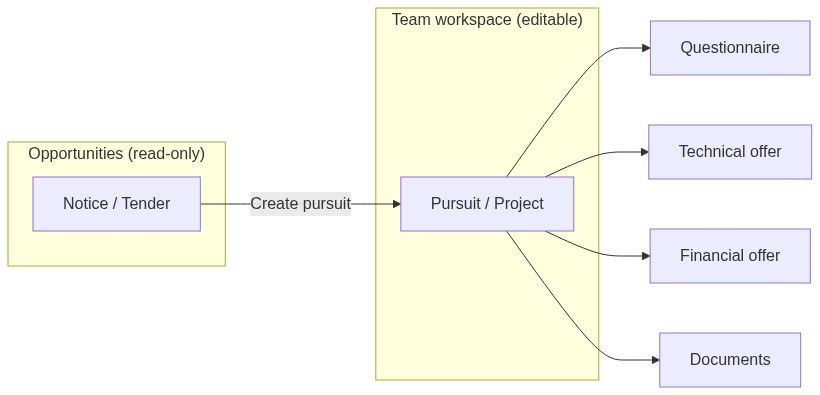
One notice can have many pursuits — at most one pursuit per team per notice. Team A and Team B each get their own workspace on the same tender; they never share questionnaire answers or pricing.
How a notice differs from a pursuit
Creating a pursuit copies key facts at that moment (title, deadline, value, country, CPV, authority). After creation, pursuit data is independent — changing your compliance answers does not change the notice, and a notice amendment does not automatically rewrite your pursuit (you review versions and update your plan).
Two ways to start bid work
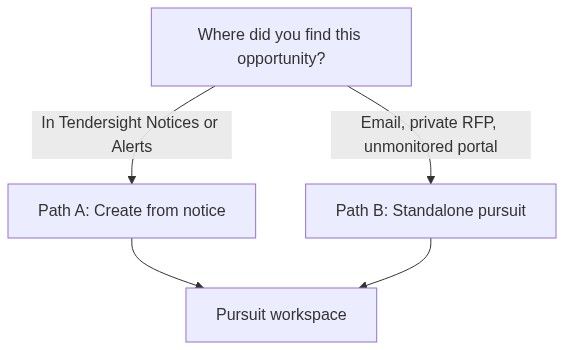
Not every opportunity in your pipeline comes from the catalog. Tendersight supports both paths; they land in the same pursuit workspace afterward.
Path A — Create pursuit from a notice (recommended when synced)
Use this when the opportunity appears under Opportunities → Notices or arrived via an alert match.
Open the notice from Notices browse, an alert email, a dashboard widget, or Home assistant search.
On Notice overview, read description, key facts, lots, and documents.
If a yellow obsolete version banner appears, click view latest version before continuing.
Click Create pursuit in the command bar (or Go to pursuit if your team already has one).
If you belong to multiple teams, pick the team that will own the bid.
You land on Pursuit overview; the card appears on Team → Pursuits kanban.
See Create pursuit from notice for team-selection edge cases and what fields copy across.
Path B — Standalone pursuit (no catalog notice)
Use this when the buyer sent documents by email, the tender sits on a portal Tendersight does not monitor, or you are responding to a private RFP.
Go to Team → Pursuits.
Click New standalone pursuit.
Complete the three-step wizard: Details → Documents → Review.
You enter title, type, country, and optional uploads yourself — there is no automatic link to an official notice reference.
See Create standalone pursuit. Standalone pursuits show Source: standalone on the board; they do not display an official identifier unless you type authority details manually.
Caution: Choosing standalone when the notice is in the catalog means you lose automatic version tracking, official identifier links, and one-click Go to pursuit from the notice page. Prefer Path A whenever the tender is indexed.
Accessing notice pages
From Notices browse (Lead Finder)
Open Opportunities → Notices in the sidebar.
Apply filters (country, CPV, value, deadline, keywords, status).
Click the contract title on a row to open Notice overview.
Keywords search document text, not only the short description — the same engine powers alert matching.
From alerts
Open Opportunities → Alerts → Activity, or follow a link in a digest email.
Click the matched notice title.
Evaluate, then Create pursuit or refine alert rules.
From analytics
From Analytics → Companies or Contracting authorities, open a profile and drill into a tender row. You still arrive on the same read-only notice detail — analytics does not create pursuits for you.
From Home assistant
Ask for tenders by topic, authority, or CPV. The assistant can open notice details or guide you toward pursuit creation after you confirm the opportunity.
Notice detail structure
The notice detail experience is one page with scroll sections (desktop: sticky section menu on the left; mobile: horizontal section bar under the command bar).
Command bar actions (signed in)
Guests may see a reduced bar; documents and pursuit actions often require sign-in and an active subscription.
Key fields and where they matter later
Status, versions, and amendments
When a newer publication replaces the one you are viewing, Tendersight shows an obsolete version banner. Always open the latest version before creating a pursuit or downloading documents for analysis. Amendment history lives on Notice versions timeline.
Caution: A pursuit created on an older notice version does not auto-migrate when the authority publishes an amendment. Re-read the timeline, download new documents, and update your questionnaire and offers manually.
What you can do on a notice (and what you cannot)
You can
Search and filter the catalog
Set up alerts from notice criteria
Download or preview tender documents (subject to plan)
Run product extraction on documents (credits may apply)
Create pursuit for your team
Share links and add deadlines to your calendar
Use notice data in Analytics widgets (read-only)
You cannot
Edit title, deadline, CPV, or authority data
Upload fixes to the authority's PDFs on the notice record
Share one pursuit across two teams on the same notice
Force a sync — updates arrive on Tendersight's schedule from official sources
Where notices appear beyond the detail page
Analytics and Opportunities are separate planes: notices feed decision quality; pursuits feed execution.
Permissions snapshot
Full matrix: Permissions and access.
Recommended workflow (notice → pursuit)
Discover — browse or alert lands you on a notice.
Validate — latest version, deadline, lots, documents.
Decide — bid/no-bid using value, authority history, and team capacity.
Prepare team — settings and inventory if not already done (Getting started workflow).
Create pursuit — from notice (Path A) or standalone (Path B).
Execute — in-depth analysis → questionnaire → offers → documents → final checkup (First pursuit workflow).
FAQ
What is the difference between a notice and a pursuit?
A notice is the authority's published opportunity (read-only). A pursuit is your team's workspace to prepare a bid — requirements, offers, documents, and checklists.
What is the difference between pursuit and project?
Same workspace. Project appears in some translations and assistant phrasing; pursuit is the primary English label in Team → Pursuits.
Can I create a pursuit without a notice?
Yes. Use New standalone pursuit when the opportunity is not in the catalog. You enter context and upload documents yourself.
Can two teams share one pursuit on the same notice?
No. Each team gets its own pursuit. Team A cannot see Team B's questionnaire or pricing.
Why does the button say "Go to pursuit" instead of "Create pursuit"?
Your current team already has a workspace on this notice. Clicking opens that pursuit directly.
What happens if the authority amends the tender after I created a pursuit?
The notice updates on sync; your pursuit does not auto-update. Review Versions timeline, fetch new documents, and adjust your bid content.
Can I edit the notice title or deadline?
No. Notices are imported read-only. Update your pursuit overview notes or tasks if your internal planning differs.
Do I need team settings before creating a pursuit?
Strongly recommended. Without company profile, legal representative, and banking, document auto-fill and AI filler leave "complete" placeholders in PDFs from day one.
Related articles
Pursuit
Create pursuit from notice
Create standalone pursuit
Notice overview
How information flows
First pursuit workflow
Contracting authority
Was this helpful?
Still need help? Ask the team