Notice overview
Overview
The notice overview is the main evaluation page for a single public procurement opportunity. Here you read the official description, scan key facts, preview lots and participants, download tender documents, and decide whether to create a pursuit, set up alerts, or share the opportunity with colleagues.
Overview is the hub of the notice detail experience. Other tabs — Lots, Participants, Versions timeline, Products — extend what you see here. Notices remain read-only; you never edit publication data on this page.
Tip: Before you click Create pursuit, confirm:
You are on the latest version (no obsolete-version banner)
Submission deadline and status are still actionable
Tender documents have finished syncing (or you have PDFs elsewhere)
Team → Settings — company profile, legal representative, banking — are complete for document auto-fill
The correct active team is selected if you belong to more than one
Important: Overview shows a snapshot from the authority's publication. Creating a pursuit copies key fields at that moment; later amendments to the notice do not automatically update your pursuit. Review Notice versions when the buyer publishes changes.
How overview fits in the notice detail experience
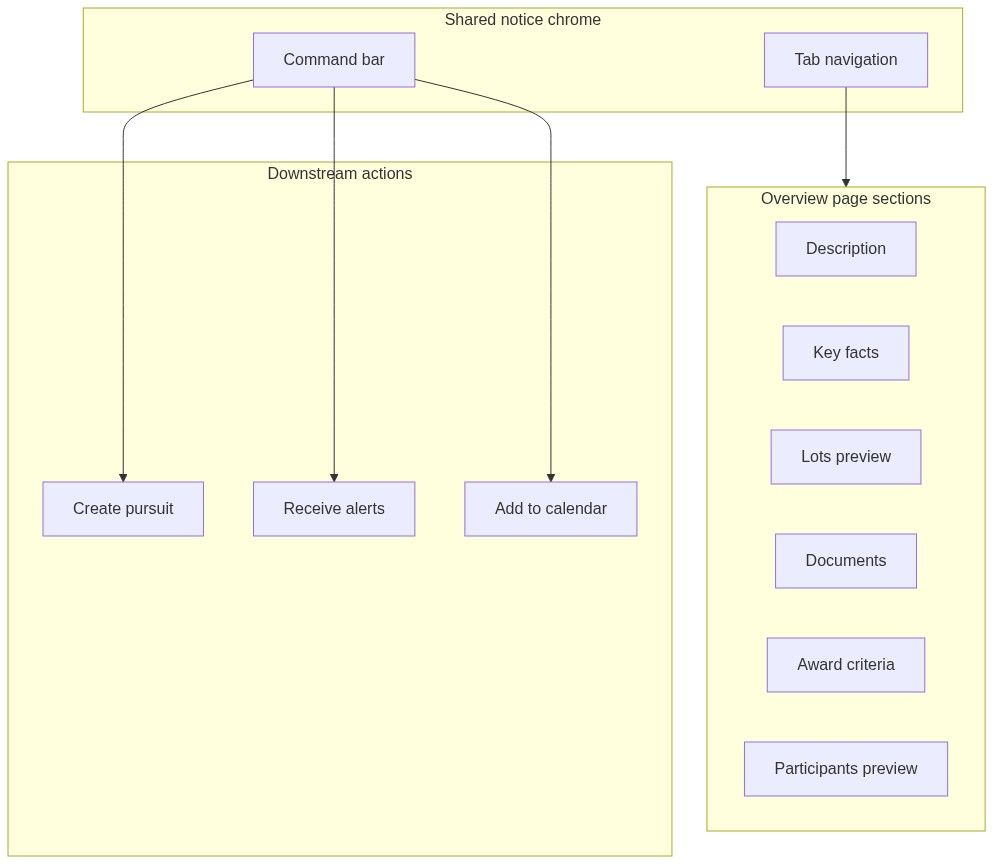
How to open notice overview
The page uses a detail layout: scroll sections on the main canvas plus a section menu that highlights your position as you scroll.
Command bar (sticky header)
The command bar stays visible while you scroll. When signed in:
Guests see a reduced bar — document download, participants, and pursuit actions often require sign-in and an active subscription.
A marketing strip for bid documentation may appear above content for some visitors.
Section navigation
Scroll the page or use the section menu to jump between blocks. The active section highlights in the menu.
Desktop: sticky left sidebar.
Mobile: sticky horizontal bar under the command bar.
Sections with no data (for example zero participants) may be greyed out or hidden in the menu.
Obsolete version warning
When a newer publication supersedes the one you opened:
You are viewing an obsolete version of this tender.
Click view latest version in the banner — opens the current publication.
Or open the Versions timeline tab for the full amendment chain.
Always confirm you are on the latest version before Create pursuit or before running document analysis. Bidding against outdated requirements is a common failure mode.
See Notice versions timeline.
Caution: A pursuit created on an older notice version does not auto-migrate when the authority amends the tender. Re-read the timeline, download new documents, and update your pursuit manually.
Decision band
Four summary tiles below the command bar give a fast bid/no-bid scan:
Use the band before reading long description text or downloading large document packages.
Overview section (description)
Collapsible block with the official notice description. Content may include buyer formatting imported from the source publication. Expand when the decision band looks promising but you need scope detail.
Key facts
Structured grid of metadata:
These fields copy into a pursuit at creation time (Path A). Wrong CPV or contract type early affects alerts and analytics — verify before creating pursuits or rulesets from this notice.
Lots preview
Collapsible section showing lot count. Click View all → Notice lots tab.
Each preview card typically shows:
Lot number and name (click opens detail sheet)
Estimated value
Award criteria summary
Weight visualization (ring or list)
Some single-lot procedures embed lot detail only in the description — an empty lots section does not always mean an error.
Documents
Split layout: file list on one side, inline preview on the other.
Guests may need to sign in to download. Large packages take time — start downloads early in your evaluation window.
Before Product extraction, wait until documents show Ready state.
Award criteria
Lists evaluation criteria from the publication:
Criterion name and description
Weight percentage
Click a row for expanded detail
Empty state: No award criteria available. For lot-specific weights, see Notice lots.
Participants preview (signed-in)
Short list of bidders with View all → Notice participants.
Single bidders and consortium groups
Empty: No participants — menu entry disabled when count is zero
Hidden entirely for guests
Participant count in the decision band hints at competition even before names publish.
Right sidebar (signed-in)
Create pursuit from overview
Click Create pursuit or Go to pursuit in the command bar.
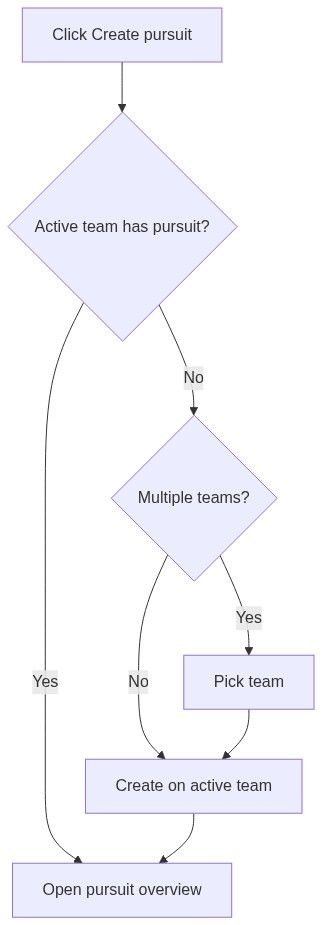
Complete team settings before creation so generated documents include legal data from day one.
See Create pursuit from notice.
Receive alerts from this notice
Receive alerts opens a dialog that pre-fills step 2 filters from this notice — CPV, country, value band, contracting authority, contract type, and similar fields. Fast path to Create alert without retyping criteria in Lead Finder.
Use when this tender is a good fit but you want similar future notices, not only this one.
Permissions snapshot
Full matrix: Permissions and access.
Recommended evaluation workflow
Check obsolete version banner and sidebar version links.
Scan decision band — value, deadline, competition, lots.
Read description and key facts.
Download or preview documents.
Skim lots and award criteria for multi-lot or price-quality mix.
Optionally run product extraction on supplies tenders.
Create pursuit or Receive alerts based on bid/no-bid decision.
FAQ
What is the difference between overview and the other notice tabs?
Overview is the default landing page with description, documents, and summaries. Lots, Participants, Versions, and Products are dedicated tabs for deeper slices of the same read-only notice.
Why does the button say "Go to pursuit" instead of "Create pursuit"?
Your current team already has a workspace on this notice. The button opens that pursuit directly.
Can I edit the notice title or deadline on overview?
No. Notices are imported read-only. Update internal notes in your pursuit after creation.
Why are participants missing?
Either you are not signed in, the procedure has not published bidder names yet, or the jurisdiction only discloses the winner. The Participants tab stays disabled when count is zero.
Do documents update automatically when the authority uploads amendments?
Yes on sync — but only on the latest version. If you see an obsolete banner, pivot versions first.
Should I run product extraction from overview or the Products tab?
Extraction runs from the Products tab after documents sync. Overview is where you confirm documents are ready.
Related articles
Notice (Tender)
Notice lots
Notice participants
Notice versions timeline
Notice products
Notices browse
Create pursuit from notice
Create alert
Was this helpful?
Still need help? Ask the team