Dashboard (Home)
Overview
Home is your signed-in landing page and the home of the dashboard assistant — a conversational workspace where you search tenders, manage pursuits, update team settings, and run document workflows in plain language.
Home is not the same as Dashboards (plural) under Analytics, which are custom chart boards you build for reporting. If you want charts and KPIs, open Analytics → Dashboards. If you want to do work by talking to the product, stay on Home.
Tip: When you open Home, check:
Correct active team in the sidebar (sessions and credits are per team)
Recents for an in-progress chat before starting duplicate work
Continue your projects on the start screen if deadlines are approaching
Team settings banners — incomplete legal data blocks reliable document auto-fill
Important: Assistant sessions belong to one team. Switching teams reloads Recents — chats do not mix across teams.
How Home fits the product
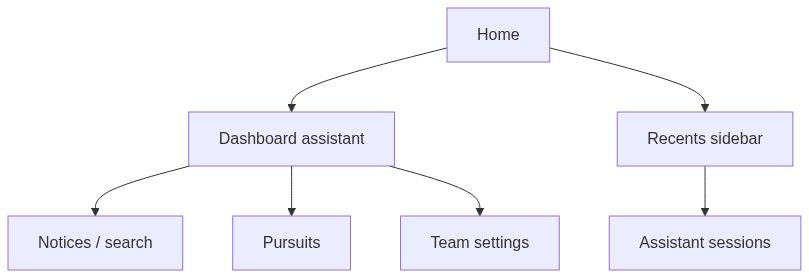
How to open Home
Page title shows your active chat name, or Home when no chat is selected.
Page anatomy
On desktop, the screen splits into:
On mobile, the sidebar collapses into a top bar with session dropdown and icon buttons.
The page locks body scroll — only the conversation area scrolls.
Chat history sidebar (desktop)
Top actions
Three stacked full-width buttons:
Recents
Heading: Recents
Each row shows:
Infinite scroll loads more sessions (20 per batch) as you scroll. Initial load shows loading placeholder rows; loading more shows loading placeholder rows at the bottom.
Empty state: dashed box with No chats found.
Resize sidebar
Drag the right edge to widen or narrow (roughly 240–480 px). Width is remembered in your browser.
Mobile session bar
Hidden on large screens. Contains:
Main area — four states
Only one state is visible at a time:
Details: New chat, Assistant session, Dashboard assistant.
Start screen
Greeting
Your profile avatar with optional team logo badge overlay.
Time-based salutation:
Headline: What can I do for you?
Continue your projects
When your team has upcoming pursuit deadlines:
Continue your projects lists rows with pursuit title (click → pursuit overview), deadline date, progress bar with percentage, and hover arrow.
Starter suggestions
Horizontal scroll chips with example prompts — click sends instantly. Listed in Dashboard assistant.
Disclaimer
Below composer: "AI-generated content. Accuracy is not guaranteed."
Bottom composer (conversation mode)
Gradient blur separates the thread from fixed bottom chrome:
Optional approval/input card (blocks composer when shown)
Follow-up suggestion chips (hidden when approval card visible)
Composer — textarea, attachments, action menu, speech, send
Disclaimer
Composer details: Dashboard assistant.
Switching teams
Changing active team in the sidebar:
Reloads Recents for that team
Updates header credits badge
Does not carry over open chat from another team
Start New chat after switching if you need assistant help on the new team.
Permissions and access
Read-only rules: Dashboard assistant — Read-only sessions.
Notices and banners
When team settings are incomplete, dashboard notices may link to Team settings — complete company profile, legal representative, and banking before relying on document auto-fill in pursuits.
The global status banner in the header may show platform-wide announcements above the page.
Integration with scheduled tasks
The Scheduled tasks button links to team scheduled tasks for the active team.
The assistant can also create and inspect scheduled tasks in conversation.
Home vs Analytics dashboards
Keyboard and accessibility
Recents rows are keyboard-focusable
Mobile session dropdown exposes the same list as desktop sidebar
Composer textarea supports standard editing shortcuts
Icon-only buttons have visible labels (New chat, Search, Scheduled tasks)
FAQ
Why is my old chat missing after I switched teams?
Sessions are team-scoped. Switch back to the original team or use Search chats within that team.
Can I use Home without credits?
Browsing and many read actions work; AI replies and heavy tools may block or prompt upgrade when credits are exhausted.
Is Home the same as Team overview?
No. Team overview is the pipeline checklist and widgets. Home is the assistant workspace.
Why does the page title show a chat name?
You have an active session open. New chat returns the title to Home.
Do guests see the assistant?
Guests see sign-up prompts instead of the signed-in Home experience.
Related articles
Dashboard assistant
Assistant session
New chat
Search chats
Scheduled tasks
Team overview
Working with AI assistant
Billing
Was this helpful?
Still need help? Ask the team