Platform overview
Overview
Tendersight is a procurement intelligence and bid-preparation platform for teams that compete on public tenders — works, supplies, and services across Europe. You discover official opportunities in a shared catalog, monitor new matches with alerts, research buyers and competitors in analytics, and open team pursuits (bid workspaces — sometimes labeled project in the interface) to track requirements, build technical and financial offers, and assemble submission documents.
The product is organized around a simple split: market data you read but never edit (notices, authority profiles, competitor statistics) and workspace data your team owns (pursuits, product catalog, company profile, banking). Between those sits monitoring — alerts, dashboards, market statistics — that helps you decide whether to bid before you invest effort in a pursuit.
Submission still happens on the contracting authority's portal. Tendersight prepares your workspace, compliance tracking, and document pack; you upload or sign externally when ready.
Tip: On your first week, walk through this checklist so later bid work is smoother:
Confirm your active team in the sidebar switcher (if you belong to more than one)
Complete Team → Settings — company profile, legal representative, and banking
Browse Opportunities → Notices with filters that match your market
Create at least one alert so new tenders arrive without daily manual search
Open Home and try the assistant for a tender search or pursuit question
Skim Terminology glossary when notice, tender, pursuit, or project appear in the same sentence
Important: Tendersight does not publish tenders. Notices are imported from official sources (SEAP, TED, and other national portals). You cannot change a notice title, deadline, or authority record — you create a pursuit when you decide to compete.
What Tendersight helps you do
Many capabilities depend on your subscription plan, country profile on each pursuit, and whether you are signed in. Guests can often browse notice overviews; pursuits, alerts, and most documents require an account.
Global navigation (left sidebar)
The main sidebar groups features by job-to-be-done. Paths below use the labels you see on screen — not internal route names.
When you belong to a team, a second block appears:
Deeper team management — members, scheduled tasks, integrations, document templates, knowledge base — lives under the team management layout with its own inner left navigation when you open pages like Team → Overview or Management → Users.
Three planes of the product
Understanding Tendersight is easier when you separate three planes. Confusion usually happens when users try to edit market records or expect analytics to create pursuits automatically.

Caution: Opportunities and Analytics both display notices, but neither creates a pursuit for you. Use Create pursuit on a notice page or New standalone pursuit on Team → Pursuits. See How information flows.
Account, team, and active team
Three layers define who you are and whose data you are looking at.
When you register, Tendersight creates a default team for you. You can invite colleagues, create additional teams for subsidiaries or client engagements, and switch teams in the sidebar. Switching teams changes assistant history, scheduled tasks, credit balance, and whether a notice shows Create pursuit or Go to pursuit.
Your organization's legal identity lives in Team → Settings as the company profile — not in Analytics. Analytics → Companies lists competitors from public data. See Team and Company (two meanings).
Opportunities vs Analytics vs Team

Drilling from Analytics → Companies or Contracting authorities into a tender row opens the same read-only notice detail as Opportunities. Analytics never mutates your pursuit data.
Pursuit workspace (when you open a bid)
A pursuit is your team's editable project folder for one opportunity. Opening it reveals a dedicated sidebar whose modules depend on pursuit type (works, supplies, services) and country (28 European country profiles).
Not every pursuit shows every module. Country profiles and pursuit type control activation and ordering. See Pursuit and First pursuit workflow.
The typical journey (notice to submission)
Most teams follow a path like this. Steps are optional or gated by plan.
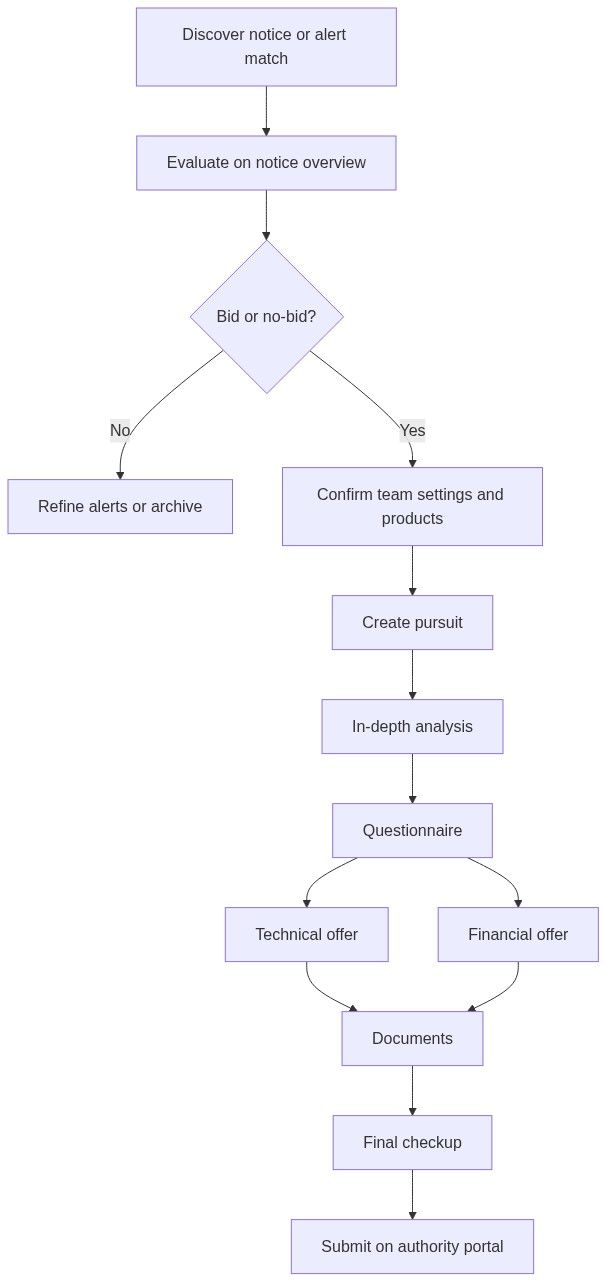
Before Create pursuit, many teams parallel-track Analytics — authority statistics, company win history, CPV market stats — to support bid/no-bid.
Two ways to start bid work
Both paths land in the same pursuit workspace.
Path A — Create pursuit from a notice (recommended when indexed)
Use when the opportunity appears under Opportunities → Notices or via an alert.
Open the notice; read overview, lots, documents.
If an obsolete version banner appears, open the latest version first.
Click Create pursuit (or Go to pursuit if your active team already has one).
Pick the owning team if you belong to more than one.
Land on Pursuit overview; card appears on Team → Pursuits kanban.
See Create pursuit from notice.
Path B — Standalone pursuit (no catalog notice)
Use for email RFPs, portals Tendersight does not monitor, or private opportunities.
Go to Team → Pursuits → New standalone pursuit.
Complete wizard: Details → Documents → Review.
Board shows Source: standalone; no automatic official identifier link.
See Create standalone pursuit.

Caution: Choosing standalone when the notice is in the catalog loses automatic version tracking, official identifier links, and one-click Go to pursuit. Prefer Path A whenever the tender is indexed.
Who uses Tendersight
One person may wear several hats. Permissions combine team role, subscription features, and dashboard sharing — see Permissions and access.
Languages, countries, and data sources
Market data coverage grows as new sources are indexed. A tender missing from Notices may still be handled via standalone pursuit.
AI and credits (platform-wide)
Credits and feature access are per active team. Blocked actions show upgrade or payment-required UI. AI output is advisory — verify before submission.
See Working with AI assistant and Billing.
Subscription snapshot
Exact limits appear in Team → Billing and in-context when an action is blocked.
Platform boundaries
Recommended reading order
FAQ
Is Tendersight a tender portal where I submit bids?
No. Tendersight imports public notices and helps your team prepare internally. You still submit on the authority's official portal or procedure.
What is the difference between a notice and a pursuit?
A notice is the authority's published opportunity (read-only). A pursuit is your team's workspace to prepare a bid. See Notice (Tender) and Pursuit.
What is the difference between pursuit and project?
Same workspace. Project appears in some translations and assistant phrasing; pursuit is the primary English label under Team → Pursuits.
Why does my sidebar look different from a colleague's?
Team membership, active team, subscription, and whether you are inside a pursuit change visible items. Guests see a reduced experience.
Can I belong to multiple teams?
Yes. Use the sidebar team switcher. Pursuits, billing, and assistant context follow the active team.
Where is my company legal data — Team settings or Analytics?
Team → Settings is your editable company profile for documents and offers. Analytics → Companies is read-only market intelligence about bidders in public data.
Do I need to complete team settings before creating a pursuit?
Strongly recommended. Without company profile, legal representative, and banking, document auto-fill and AI filler leave placeholders in generated PDFs.
Related articles
Core concepts
How information flows
Terminology glossary
Permissions and access
Team
Notice (Tender)
Pursuit
Getting started workflow
Was this helpful?
Still need help? Ask the team