Create team
Overview
Create a new team when you need a separate workspace — a different legal entity, subsidiary, client engagement, or business unit. Each team is an isolated collaboration space with its own pursuits, product inventory, company settings, members, billing subscription, and AI credit pool.
When you register, Tendersight creates a default team for you. Use New team when the default workspace no longer matches how you organize bids — for example when a second VAT number needs its own company profile, or when you consult for multiple clients who must never see each other's pursuits.
Tip: Before you create a team, confirm you have:
A clear reason to separate workspaces (legal entity, client, or billing boundary)
A team name your colleagues will recognize in the team switcher
Email addresses ready if you plan to invite members during creation
Awareness that each team has its own subscription and settings — data does not carry over automatically
Creating a team is fast; completing Team → Settings and inventory on the new team is what makes it bid-ready.
Important: A team is not a folder inside another team. Pursuits, products, and settings never merge across teams. If two legal entities share one team, every generated document assumes a single bidding entity — use separate teams instead.
Team vs default workspace — when to create another
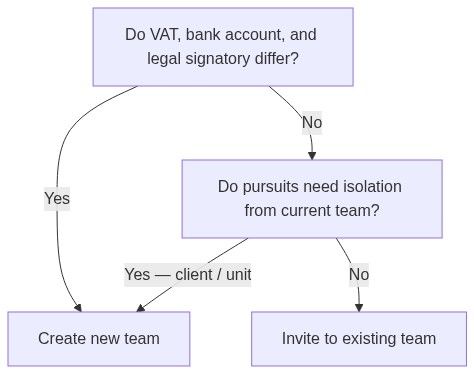
Caution: Do not create a new team only to "start fresh" on the same legal entity unless you intentionally want empty inventory and a new subscription. Renaming the existing team or archiving old pursuits is usually simpler.
How to open the creation wizard
The page title is Create team; the header shows New team.
There is no team management prerequisite — any signed-in user who is allowed to create teams can open the wizard.
Wizard structure
The wizard has two steps shown in a horizontal stepper on desktop and a compact step title on mobile:
Footer navigation:
A progress indicator shows completion (0% on step 1, 50% on step 2 before save). On desktop you can click completed stepper steps to jump back — not while the form is submitting.
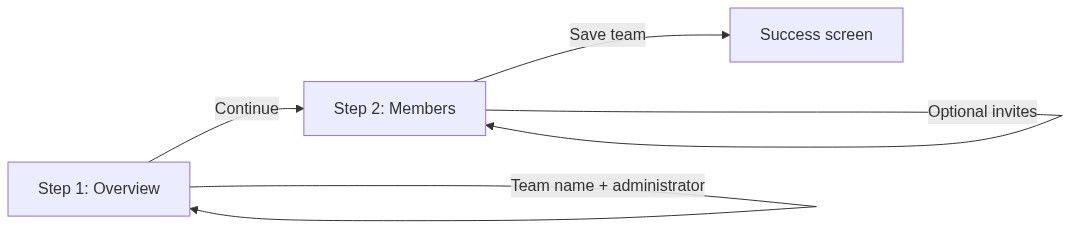
Step 1 — Overview
Administrator preview
Read-only block labeled Administrator:
Your avatar, display name, and email
Helper text: "You will be the owner and administrator of this team."
You cannot assign a different owner during creation. To hand control to someone else later, use Transfer ownership after they join.
Team name field
The team name is a workspace label, not your legal company name. Register legal identifiers under Team → Settings → Company profile after creation. See Team name.
Continue to step 2
Click Continue. If the name is missing, inline validation blocks advancement.
Step 2 — Members
Section title: Invite members
Description: "Invited members will be notified by email and assigned the Collaborator role by default. You can modify roles after the team is created."
Empty state
When no invite rows exist, an empty state offers a quick path to add the first email field.
Adding invitees
For each colleague:
Enter email address — placeholder e.g. colleague@company.com
Click Add more to queue another row
Click Remove on a row to drop it from the queue
There is no role picker in the wizard — every invite receives Collaborator by default. Change roles later on Team members.
Skipping invitations
Leave the member list empty and click Save team. You can invite from Team → Users anytime.
Saving and success
Click Save team on step 2.
On success:
Tendersight automatically switches your active context to the new team
You become owner with Administrator privileges
Invitations are emailed to every address you queued (if any)
Success copy reports how many invitations were sent
Go to team opens Team overview
The getting started checklist appears on overview — complete settings before the first real pursuit on this team.
What a new team includes (and what it does not)
Included from day one
Not copied from other teams
Company profile, banking, legal representative
Products and categories
Pursuits and documents
Integrations (WooCommerce, GoMag, etc.)
Alert rulesets (configure per team)
Subscription — new team may need its own plan
After creation — recommended setup order
Match the Getting started workflow:
Team → Settings — company profile, legal representative, banking (required before pursuits)
Company logo — optional branding before exports
Team → Inventory — products for technical offer automapping
Opportunities → Alerts — if this team hunts new tenders
Team → Pursuits — first pursuit from a notice or standalone

Permissions and plan limits
If creation fails with a subscription or usage message, check Team → Billing on an existing team or contact your account administrator.
Edge cases
What you cannot do in the wizard
Assign a different owner upfront
Pick per-invitee roles (only Collaborator default)
Copy settings or inventory from an existing team
Create a pursuit before finishing the wizard
Set company profile during creation (done in settings afterward)
FAQ
How is this different from registering?
Registration creates your user account and a default team. New team adds another workspace to an existing account.
Does creating a team cost extra?
Each team may have its own subscription and usage limits depending on your plan. Billing is scoped per team.
Can I rename the team later?
Yes. Team → Settings → Team name — see Team name.
Do invited members need to accept before I configure settings?
No. You can complete settings immediately after creation. Invitees join when they accept.
What role do I have after creation?
Owner and Administrator — full management including members, settings, and ownership transfer.
Should I create a team per pursuit?
No. One team hosts many pursuits. Create a new team only for organizational or legal boundaries.
Troubleshooting
Related articles
Team entity
Team overview
Team settings
Team members
Accept invitation
Transfer ownership
Getting started workflow
Was this helpful?
Still need help? Ask the team