Product quotation sources
Overview
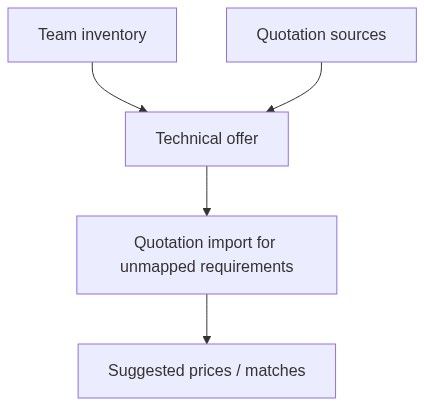
Product quotation sources tell Tendersight where to search when you need live supplier quotations inside a pursuit’s technical offer — for example when a requirement asks for current market prices and your static inventory does not include them.
This is not your product catalog. Inventory holds your own SKUs and specifications. Quotation sources are external websites or feeds you trust for price discovery during a bid.
Optional setup: many teams rely only on inventory and manual pricing. Configure sources only if your technical offer workflow uses quotation import for unmapped requirements.
Where to find it
Team → Management → Settings — last section in the settings grid.
Subtitle on screen: "A list of sources that you prefer us to use when generating product quotations for your team."
How this section differs from others
Most settings sections use a cog icon that opens an edit sheet, or clickable rows that open the same sheet.
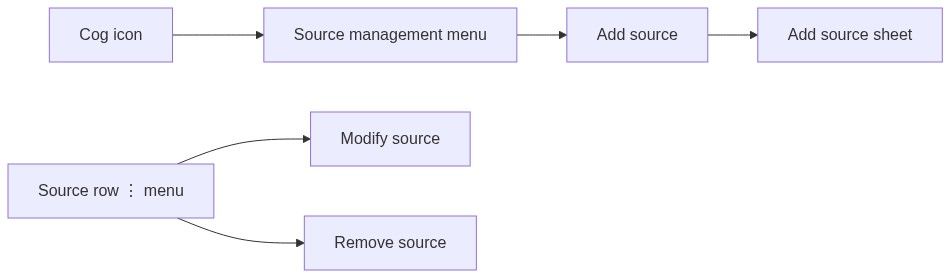
Product quotation sources use a different pattern:
Section layout
Header
Cog icon (top-left) → dropdown Source management with Add source
Title: Product quotation sources
Subtitle: (see above)
Search
Appears when you have at least one source or you have typed in the search box.
Placeholder: Search sources
Filters the list as you type (brief pause before refresh)
Resets to page 1 when the query changes
Source list
Up to five sources per page. Use pagination at the bottom when you have more.
Each row shows:
Type labels:
Generic URI — a standard web page or service address
RSS Feed — a syndicated feed URL
Credential status:
With credentials — username/password or header authentication configured
No credentials — public access only
Row menu (⋮):
While a row is deleting, it fades and the menu shows a loading indicator.
Restrict toggle
Shown only when at least one source exists.
Check only these sources — "When enabled, product quotation searches will be restricted to the configured sources above."
Flipping the switch saves right away. If save fails, the switch reverts and you see:
Something went wrong — "Failed to update quotation settings. Please try again."
When off, Tendersight may also use its default quotation sources (in addition to yours), depending on product configuration.
Empty state
When no sources exist and search is empty:
Receipt-style icon
No sources
"You have configured no preferred sources for this team. The default sources will be used when generating quotations in tender pursuits."
Add source button (same as cog menu)
Loading and error states
Add source sheet
Opened from Add source (cog menu or empty state).
Title: Add source
Description: "Add a new source that our systems will use when generating product quotations for your team's tender pursuits."
Wide side panel with scroll if needed.
Choose mode (radio buttons)
Add single source — form for one entry (default)
Import multiple sources — upload a file with many links
Close via X or click outside. There is no Cancel/Save in the sheet footer — the single-source form has Save source; import has Import.
Single source form
Used for create and modify.
If you fill a header name without a value (or the reverse), the form shows a validation message before save.
Save source — right-aligned submit button.
Success and error toasts
Failures use Something went wrong with a short explanation.
Modify source sheet
Title: Modify source
Description: "Update the configuration of a source where quotations for your teams are searched for."
Same fields as create, pre-filled. Open from row ⋮ → Modify source.
Bulk import
Select Import multiple sources in the add sheet.
Instructions: "Upload a file with one link per line. Supported formats: .txt, .csv, .xls, .xlsx, .docx"
Choose a file, then Import (disabled until a file is selected or while importing).
On success the sheet closes and the list refreshes.
Where quotation sources are used
Only during technical offer → quotation import when you ask Tendersight to fetch supplier quotations for requirements not covered by your catalog.
Does not change:
Products list catalog
AI automapping against your product specifications
Company profile or other team settings
Workflow example
Open Team → Settings → Product quotation sources
Add source → enter supplier price list URL (Generic URI)
Add credentials if the site requires login
Enable Check only these sources if you must limit searches to your list
During a pursuit, open Technical offer → run quotation import on unmapped lines
Review matches before accepting prices into the offer
Permissions
Best practices
Name sources clearly ("Primary distributor catalog") so colleagues know what each URI represents
Test one source before bulk import — bad URLs fail silently in large imports
Use Check only these sources when compliance requires approved supplier lists only
Keep credentials updated when supplier portals rotate passwords
FAQs
Do I need this before my first pursuit?
No. Required team settings are company profile, legal representative, and banking — not quotation sources.
What happens if I delete a source by mistake?
It is removed immediately. Re-add via Add source.
Will RSS feeds work for any website?
Only if the site publishes a valid feed URL. Otherwise use Generic URI.
Does this pull products into Inventory?
No. It only supports live quotation lookup during technical offer work.
Troubleshooting
Related articles
Team settings
Team product
Technical offer
Connected services