Getting started workflow
Overview
This workflow takes a new team from zero to a first pursuit with correctly filled bid documents. Tendersight is not a single screen — it is three planes working together: Opportunities (read-only market catalog), Team (your reusable company data and product catalog), and Pursuit (your bid workspace). The order of setup matters because pursuits pull legal data and products from the team layer, not from notices.
Most teams that struggle in week one skipped Team → Settings before creating a pursuit. Generated PDFs then show "complete" placeholders for VAT, IBAN, and legal representative fields — and fixing settings later means regenerating every document you already exported.
Tip: Keep this checklist visible until your first pursuit is open:
Account created and onboarding finished
Company profile, legal representative, and banking saved under Team → Settings
At least one product in inventory (recommended before technical offer)
At least one alert ruleset (recommended for ongoing discovery)
Team overview getting-started checklist shows required steps complete
First pursuit created after settings — not before
Colleagues invited if more than one person will work the bid (optional but common)
Estimated time: 30–90 minutes for account and team setup; your first pursuit module work is covered in First pursuit workflow.
Important: Onboarding captures organisation context but does not replace full team settings. The onboarding wizard seeds your team name and interests; legal fields for document auto-fill live only under Team → Settings.
How this workflow fits the product
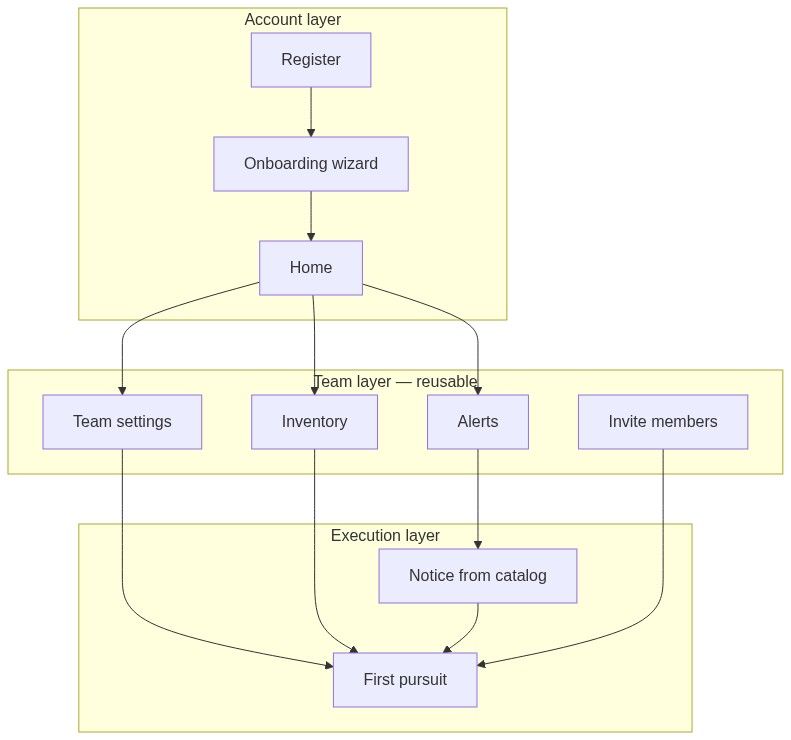
See How information flows for the full map from official notices to your submission pack.
Phase 1 — Create your account
Register
Open the registration page and complete the two-step wizard:
On success you are signed in and a default team is created — often named like "{First name}'s team". You become team owner and Administrator.
Full field reference: Register.
Joining via invitation
If you arrived from a colleague's invite link:
Banner shows "You are joining {team}" with your email pre-filled.
Complete registration — you join that team automatically after sign-in.
Onboarding skips the colleague-invite step (you are already joining someone else's team).
You may still need to complete alert setup depending on account policy.
Caution: If you belong to multiple teams later, always confirm the active team in the sidebar before creating pursuits or updating settings. Pursuits and settings are team-scoped — switching teams changes which workspace you are editing.
Phase 2 — Complete onboarding
After registration, the onboarding wizard runs until you finish it. Incomplete accounts redirect back on every sign-in.
Finish lands you on Home with your default team active.

What onboarding does save to your team:
Display organisation name and metadata from step 2
Optional first alert foundation from step 1
What onboarding does not save:
Full legal company profile (VAT, trade registry, headquarters address)
Legal representative ID document
Banking IBAN and SWIFT
Complete those in Phase 3. See Onboarding.
Phase 3 — Team settings (required before pursuit)
Open Team → Settings and save all three core sections. The Team overview checklist treats Configure team settings as one step — it completes only when all three are saved.
1. Company profile
Legal identity used in generated forms and offer headers.
→ Company profile
Edit via the cog icon or click any field row → Update company profile sheet.
2. Legal representative
Person authorized to sign on behalf of the company.
→ Legal representative
Caution: Missing ID document upload is a common reason document AI filler skips signature-related fields. Upload before your first document generation run.
3. Banking information
Payment details for financial forms.
→ Banking information
Optional — same visit
Verify completion
Open Team → Overview.
Configure team settings step should show a checkmark.
Optional: ask Home assistant — "Review our company profile and banking details — flag empty fields required for Romanian public tenders."
Important: Changing team settings after generating pursuit documents requires regenerating those PDFs. Save settings correctly before Phase 6.
Hub reference: Team settings.
Phase 4 — Inventory (recommended before pursuit)
Team → Inventory → Products → New product — manual, datasheet, CSV, or connected service sync. At least one product marks Import inventory complete on team overview.
Team products are your catalog; buyer lines from notice extraction map inside the pursuit.
Phase 5 — Monitoring (run in parallel)
Configure at least one alert so matching notices arrive without daily manual browsing.
Opportunities → Alerts → New ruleset
Or use Create alert from the team overview checklist, or finish onboarding step 1.
Shortcuts:
From any notice overview, click Receive alerts to seed rules from that notice's criteria.
Team-scoped alerts are visible to colleagues on the same team.
→ Create alert · Alerts list
Tip: Keywords search document text, not only the short description — the same engine powers alert matching. Include product names and technical terms buyers use in specifications.
Phase 6 — First pursuit
Only after Phase 3 is complete (all three core settings saved).
Find an opportunity
On notice overview, validate before creating:
Latest version — no obsolete-version banner (or click view latest version)
Submission deadline still actionable
Tender documents available for download or analysis
Lots reviewed if multi-lot
Estimated value fits your bid/no-bid band
Create the pursuit
Click Create pursuit in the notice command bar (or Go to pursuit if your team already has one on this notice).
If you belong to multiple teams, pick the team that will own the bid.
Land on Pursuit overview — card appears on Team → Pursuits in Active.
→ Create pursuit from notice
Standalone alternative
When the opportunity is not in the catalog (email RFP, unmonitored portal):
Team → Pursuits → New standalone pursuit
Wizard: Details → Documents → Review
→ Create standalone pursuit
Caution: Prefer notice-linked creation whenever the tender is indexed. Standalone pursuits lose automatic version tracking and Go to pursuit from the notice page.
Confirm pursuit context
On Pursuit overview, verify pursuit type (works, supplies, services) and country. These control which sidebar modules appear. Wrong context early means wrong modules later.
Entity reference: Pursuit · Notice (Tender).
Phase 7 — Invite your team
Optional during onboarding; required when multiple people share compliance work.
Team → Users → Add member
Invited colleagues accept via email link → Accept team invitation.
After invites:
Assign owners on pursuit overview and questionnaire rows.
Configure SME assignments if reviewers route by category.
Point new members to First pursuit workflow for in-pursuit module order.
→ Team members
Phase 8 — What happens inside the pursuit
Getting started ends when your pursuit workspace is open and context is correct. Module work is the First pursuit workflow:
In-depth analysis (extract requirements from tender documents) ↓Questionnaire (compliance matrix — answer requirements) ↓Technical offer (map team products to requirements) ↓Financial offer (pricing) ↓Documents (auto-fill authority forms from team settings) ↓Final checkup (pre-submission review)Module availability depends on pursuit type and country — the sidebar is dynamic.
Use Home assistant for guided help:
"Open the latest pursuit and summarize missing requirements."
"List required documents not yet uploaded in the active pursuit."
→ Working with AI assistant
Team overview checklist — how progress is tracked
Team → Overview shows a Getting started card until required steps complete, then it disappears.
Progress bar: "{completed} of {total} required steps completed"
Optional steps show an Optional badge. Completed steps strike through.
→ Team overview
FAQ
Do I need a credit card to register?
No. Registration is free to start. AI credits and pursuit limits depend on your subscription plan — see Billing.
Does onboarding replace Team → Settings?
No. Onboarding captures organisation name and interests. Legal fields for document auto-fill require Company profile, Legal representative, and Banking under Team → Settings.
Can I create a pursuit before finishing team settings?
Technically yes, but strongly discouraged. Generated documents and AI filler will lack your legal data until settings are complete and documents are regenerated.
Is inventory required before creating a pursuit?
Not required for creation, but recommended before technical offer and quotation generation. Team overview marks Import inventory as a required checklist step.
I was invited to an existing team — do I still run this workflow?
Partially. Skip account creation and colleague invites. Confirm with your admin that team settings and inventory are already complete before starting pursuit work.
How do I know which team is active?
Check the team switcher in the sidebar. Pursuits, settings, and inventory always belong to the active team.
What if I need a second team for a subsidiary?
Create another team → Create team. Each team has separate settings, inventory, pursuits, and billing scope.
Where do I go after this workflow?
Continue with First pursuit workflow for module-by-module bid preparation.
Why do my PDFs show "complete" placeholders?
You likely created a pursuit before saving team settings, or exported documents before settings were complete. Finish Company profile, Legal representative, and Banking, then regenerate every PDF.
Related articles
Platform overview
How information flows
Permissions and access
Team overview
Team settings
Pursuit
Notice (Tender)
First pursuit workflow
Working with AI assistant