Billing
Overview
Billing opens the external subscription portal for your active team. There you manage plan tier, payment method, invoices, and optional credit packs. Inside Tendersight, AI features consume team credits shown in the header badge — billing and credits are always scoped to the team selected in the sidebar, not to you personally.
Opening billing does not change your plan inline. Tendersight prepares a secure portal session and redirects your browser to the payment provider's hosted pages.
Tip: Before upgrading or buying credits, confirm:
The correct active team is selected in the sidebar
You have billing permission (owner or administrator with billing access)
Enough credits for planned AI work (in-depth analysis, document generation, assistant at higher intelligence)
Team settings are complete if you are about to start pursuits (billing does not replace legal profile data)
Important: Each team has its own billing profile. Paying for Team A does not cover Team B. Switch teams before opening Billing.
How billing fits the product
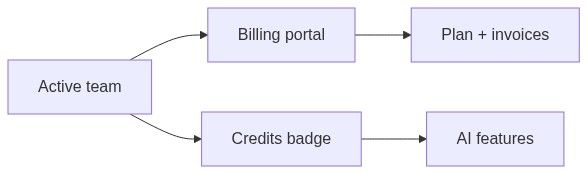
How to open billing
Typically requires team owner or Administrator with permission to manage team billing.
Opening the portal — step by step
1. Select the team that owns the subscription.
2. Open Billing from the team section of the sidebar.
3. Wait on the redirect page:
- Title: Preparing portal
- Messages: "The billing portal is being prepared." and "You will be redirected shortly."
- Footer shows the current team name
4. Your browser opens the external portal automatically.
5. Manage plan, payment method, or invoices in the portal.
6. Close the portal tab or use its return link when finished.
Redirect page states
Success path
Error path
If session creation fails:
Common causes:
Credits in the app
Credits are per team. Switching teams updates the header badge immediately.
Header credits badge
Click the coin icon + count in the header to open the credits popover:
What consumes credits
Caution: Running out of credits does not delete your data. AI actions may block or prompt upgrade until balance is restored.
What the billing portal controls
Exact options depend on your contract and region. In-app limits (pursuits, seats, integrations) enforce plan caps even if UI still loads.
Permissions
If Retry keeps failing with a permissions message, ask the owner to complete billing setup or delegate access.
Billing vs profile vs team settings
Best practices
Always manage billing from the team that owns the subscription and pursuits you care about.
Monitor credits before large AI batch jobs (in-depth analysis, bulk document generation).
Upgrade before hitting pursuit, integration, or seat limits mid-bid cycle.
After purchasing credits, allow a short refresh — badge updates when balance syncs.
Keep payment method current in the portal to avoid AI interruptions at deadline time.
Edge cases
FAQ
Is billing per user or per team?
Per team. Each workspace has its own billing profile and credit pool.
Do credits roll over?
Depends on your plan and contract — check invoice terms in the portal or ask your account contact.
Can one invoice cover multiple teams?
No. Each team bills separately.
Why can I see credits but not open billing?
You likely lack billing permission. Credits are visible to more roles than portal access.
Does upgrading increase pursuit limits immediately?
Plan limits enforce after successful subscription change in the portal; allow a short sync.
Where do I see usage history?
Invoices and some usage detail live in the external portal, not on the redirect page.
What happens when credits run out?
AI features may stop or show upgrade prompts. Existing pursuits, documents, and notices remain accessible per your plan.
Troubleshooting
Related articles
Dashboard assistant
Connected services
Team overview
Profile
Getting started workflow