First pursuit workflow
Overview
This workflow takes your team from an empty pursuit workspace to a submission-ready package — requirements extracted, compliance answered, offers priced, authority forms filled, and final checkup passed. It assumes you already completed Getting started: team settings saved, optional inventory and alerts in place, and a pursuit created from a notice or standalone wizard.
Estimated time: 2–4 hours for a first pursuit on a typical supplies notice; complex works contracts with many lots can take days across multiple reviewers.
Tip: Before you start module work, confirm:
Team settings complete — company profile, legal representative, banking (Team settings)
Active team in sidebar matches the pursuit owner
Pursuit type and country correct on Pursuit overview
For notice-backed pursuits: latest notice version reviewed; tender documents downloaded
At least one team product in inventory (before technical offer)
Owner assigned on pursuit overview for kanban accountability
Important: A pursuit is independent after creation. Authority amendments update the public notice on sync — not your questionnaire or offers. When you see an obsolete-version banner on the linked notice, re-read Notice versions and update bid content manually.
End-to-end flow
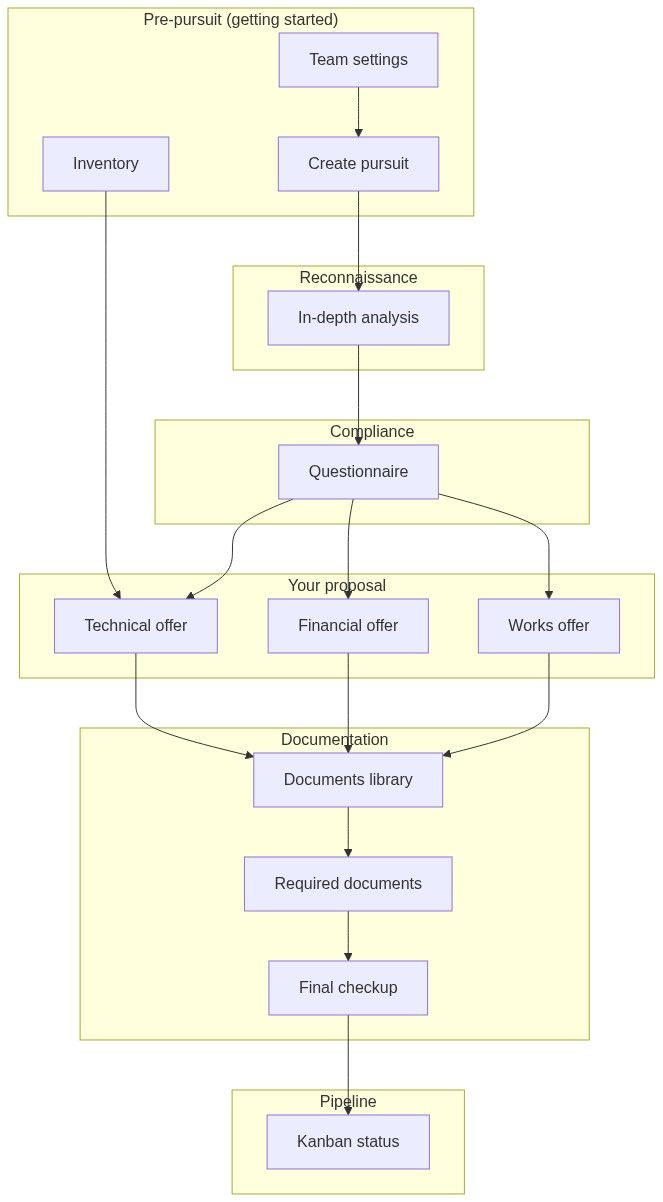
Submission to the authority still happens outside Tendersight on the buyer's portal. This workflow prepares your workspace; you upload or post the package externally, then move the kanban card to Bid submitted.
Phase checklist
Use this as your running scorecard. Check phases in order — later modules depend on earlier outputs.
☐ Phase 1 — Team settings verified (all three core sections)☐ Phase 2 — Inventory ready (recommended)☐ Phase 3 — Opportunity validated on notice overview☐ Phase 4 — Pursuit created; context confirmed☐ Phase 5 — Requirements extracted (in-depth analysis)☐ Phase 6 — Questionnaire answers and evidence☐ Phase 7 — Technical, financial, and works offers☐ Phase 8 — Documents, templates, required documents☐ Phase 9 — Final checkup passed☐ Phase 10 — Kanban updated (Bid submitted → Won / Lost)Phase 1 — Verify team settings
Even if you completed settings during getting started, re-open them before heavy document work. Empty fields you missed still propagate as placeholders.
Team → Settings — confirm all three sections show saved data:
Team → Overview → Configure team settings should show complete.
Optional same visit:
Company logo — headers on generated PDFs
Product quotation sources — live price feeds
Caution: Skipping this phase causes "complete" placeholders in generated PDFs and AI filler warnings. If you change settings mid-pursuit, regenerate every document you already exported.
Phase 2 — Prepare inventory
Team → Inventory → New product — choose manual entry, datasheet upload, CSV import, or connected service sync. At least one product unlocks technical offer automapping.
For larger bids, configure requirement categories and SME assignments before bulk questionnaire routing.
Phase 3 — Find and validate the opportunity
Discovery paths
Validate on notice overview
Open Notice overview and confirm:
If a yellow obsolete version banner appears, click view latest version before creating or continuing pursuit work.
Tip: Run Notice products extraction on the notice when you want a preview of buyer product lines before opening the pursuit — credits may apply.
Entity context: Notice (Tender).
Phase 4 — Create the pursuit
Path A — From notice (preferred when synced)
On notice overview, click Create pursuit (or Go to pursuit if your team already has one).
Multi-team accounts: pick the owning team.
Land on Pursuit overview — kanban card in Active.
→ Create pursuit from notice
Path B — Standalone
When the tender is not in the catalog:
Team → Pursuits → New standalone pursuit
Wizard: Details → Documents → Review
Enter title, type, country, owner; upload authority PDFs if available.
→ Create standalone pursuit
Confirm pursuit context immediately
On Pursuit overview:
Incomplete context shows a navigation warning until type and country are set.
Entity reference: Pursuit.
Phase 5 — Extract requirements
Open In-depth analysis from the pursuit sidebar (under Reconnaissance for most country profiles).
Typical steps
Select or upload authority tender documents (from notice download or standalone upload).
Start the extraction task — processing runs asynchronously; credits may apply.
When complete, review imported rows on In-depth analysis results.
Import accepted requirements into Questionnaire.
→ Create analysis · Results
What you get
Caution: Re-run or supplement analysis when the authority publishes an amendment. Your pursuit does not auto-refresh — compare Notice versions and update manually.
Optional — Understanding module
Some country profiles include Understanding and Clarification requests before heavy questionnaire work — use them to summarize scope and track Q&A with the authority.
→ Understanding
Phase 6 — Answer the compliance matrix
Open Questionnaire from the pursuit sidebar.
Workflow inside the module
Filter by category, status, or owner.
Assign owners — manual or via SME assignments.
Answer each requirement — text, yes/no, attachments as the row type requires.
Attach evidence — datasheets, certificates, prior project proof.
Track completion percentage on pursuit overview.
→ Questionnaire
Team coordination
Configure requirement categories and SME assignments for auto-reviewer routing; use Task management for cross-module deadlines.
Assistant: "Open the latest pursuit and summarize missing requirements." — sensitive writes pause for Confirmation required (Working with AI assistant).
Phase 7 — Build offers
Module set depends on pursuit type and country profile.
Technical offer (supplies and many services)
Import team products or map manually to requirement lines.
Complete attribute mappings — buyer spec ↔ your product attributes.
Generate proposal text from mappings.
→ Technical offer · Attribute mappings
Run quotation generation only after inventory is populated.
Financial offer
Build pricing tables and line items.
Confirm totals, VAT treatment, and currency.
Link rows to questionnaire requirements where required.
→ Financial offer
Works offer (construction pursuits)
When activated for works type and country:
Open Works offer instead of or alongside standard technical paths.
Complete construction-specific volumes and BOQ-style lines.
→ Works offer · Construction standard forms
Module order by pursuit type
Country profile may add or hide modules — trust the pursuit sidebar.
Phase 8 — Documents and submission pack
Documents library
Open Documents — authority form volumes for your country and pursuit type.
Run document AI filler — pulls team settings into PDF fields.
Apply document templates for generated offer PDFs.
Upload ad-hoc evidence into the library.
→ Documents library · Document editor / AI filler
Required documents checklist
Cross-check the pursuit Required documents view against authority instructions:
Every mandatory form present
Signatures and stamps where required
Expiry dates valid on certificates
File names match portal upload rules (if specified)
→ Required documents
Important: Regenerate any PDF after team settings changes. Stale exports keep old placeholders even when settings are now correct.
Team knowledge (optional)
Human resources, document templates, and content library feed personnel and boilerplate into documents when modules reference them.
Phase 9 — Final checkup
Run Final checkup before external submission. The module cross-validates questionnaire completion, offer consistency, and document presence against rules configured for your pursuit context.
Typical failures to fix:
→ Final checkup
Assistant prompt: "In the active pursuit, list required documents not yet uploaded."
Phase 10 — Close out on kanban
After you submit on the authority portal (outside Tendersight):
Open Team → Pursuits.
Drag the card to Bid submitted.
When outcome is known, move to Won or Lost.
Filters support deadline, value, owner, status, and source (notice-linked vs standalone).
→ Pursuits list / kanban
Team overview KPIs (pipeline value, win rate, submissions due) read from these same fields.
Sidebar sections vary by country and type — open modules from the pursuit left sidebar after selecting the card on Team → Pursuits or via Go to pursuit on the notice.
FAQ
Can I start questionnaire before in-depth analysis finishes?
Yes for manual rows, but analysis is the fastest path for large tender PDFs. Wait for extraction to complete before bulk-assigning owners.
Do I need all three offers for every pursuit?
No. Works pursuits use Works offer; many supplies bids use technical + financial only. Follow your pursuit sidebar.
Can the assistant create my pursuit for me?
Yes, with Confirmation required — e.g. "Create a project from this tender." You approve before creation.
What if I hit the pursuit limit on my plan?
Creation fails with an upgrade message. Opening existing pursuits still works. Contact your team admin or see Billing.
Should I delete and recreate after a notice amendment?
Usually no. Update requirements and documents in place. Recreate only if you started from the wrong notice version and cleanup is faster than patching.
Where does submission happen?
On the contracting authority's portal or physical submission per the notice. Tendersight does not post bids on your behalf.
How do I hand off to a colleague mid-pursuit?
Invite via Team members, assign pursuit owner and questionnaire rows, share notice link for context.
What if I used obsolete tender documents for analysis?
Re-open the latest notice version, re-run in-depth analysis, and patch questionnaire rows before continuing offers.
Related articles
Getting started workflow
Working with AI assistant
Pursuit
Notice (Tender)
How information flows
Pursuit overview
Team overview