Create alert
Overview
The create alert wizard builds a ruleset that monitors the notice catalog and notifies you on a schedule you choose. Three guided steps — general information, rules, preview — mirror the power of Notices browse / Lead Finder search in an automated watch you do not have to rerun daily.
Creating an alert is the main way to turn a one-time successful filter into ongoing market coverage. The same filter dialogs appear in browse and in step 2 here — skills transfer directly.
Tip: Before you click Save on step 3, confirm:
Name is recognizable to you and teammates (not "My new alert ruleset")
Scope (personal vs team) is correct — you cannot change it later
At least one filter is configured in step 2
Notification frequency matches how often you review email
Enabled is on if you want matches immediately
You are under plan ruleset limits (check Alerts list usage meter)
Important: Filter rules are fixed after creation in the current UI. Invest time in step 2 — you can only change name, enabled, and frequency later via Edit alert.
How create alert fits in Opportunities
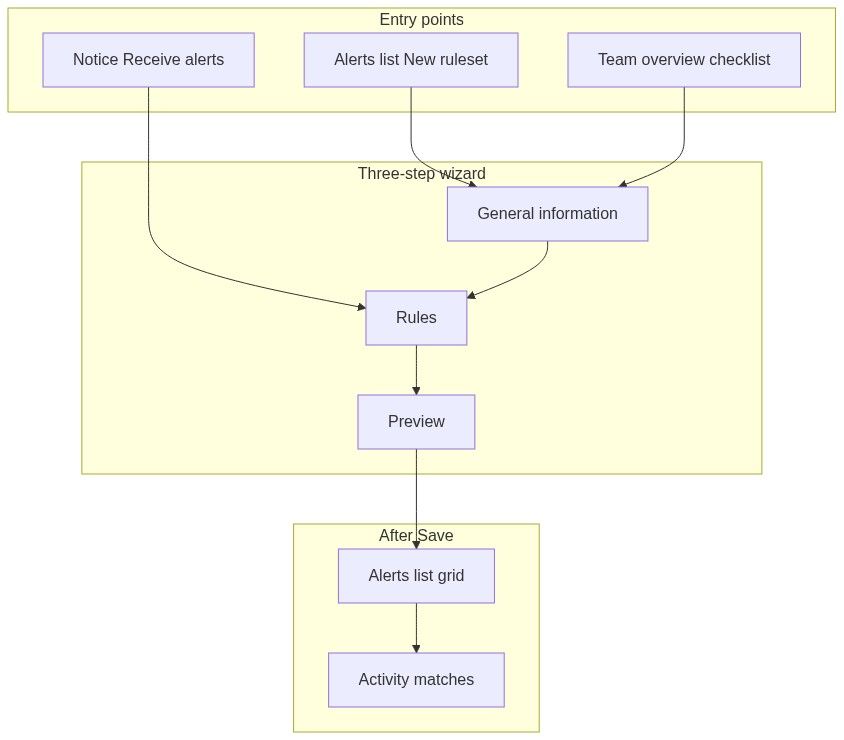
How to open the create wizard
Sign-in required.
Wizard layout
Desktop: horizontal stepper with step icons.
Mobile: compact step name + progress bar.
Save on step 3 creates the alert and returns to the list with success toast:
Alert ruleset created — We will be sending you alerts when we detect matching tenders as configured.
Step 1 — General information
Name
Use names that encode intent: RO supplies medical CPV 33100000 weekly beats generic defaults.
Scope (owner)
Not changeable after creation — pick carefully.
Enabled
Turn off to create a paused ruleset you enable later from Edit alert Overview tab.
Notification frequency
Step 2 — Rules
Uses the same filter dialogs as Notices browse and Lead Finder.
Adding filters
Click Add filter.
Choose category from the picker (keywords, country, CPV, etc.).
Configure values in the dialog.
Filter appears as a chip in the rule list.
Repeat — additional filters append with AND semantics.
Available filter types (non-exhaustive)
Rule structure
First filter starts the rule set.
Each added filter narrows results — all must match.
Remove filters via chip dismiss control.
Empty state
Step 2 shows guidance when no filters exist. You must add at least one filter before Advance to step 3.
Caution: Stacking many AND filters quickly yields zero matches. Mirror a browse session that already returns rows before saving as alert.
Step 3 — Preview
Read-only summary before commit:
Ruleset name and scope
Enabled state
Notification frequency
Visual list of applied filter chips
Review each filter chip for typos and range mistakes.
Click Previous to fix step 1 or 2.
Click Save to create.
Validation errors block Save — return to earlier steps via Previous.
Footer navigation
Validation on step 1 (name required) and step 2 (≥1 filter) blocks Advance.
Receive alerts from a notice (shortcut)
On Notice overview, Receive alerts opens a dialog that seeds step 2 filters from the current notice:
CPV codes
Country
Estimated value band
Contracting authority
Contract type
Related fields when published
Workflow:
Open a notice that exemplifies what you want to watch.
Click Receive alerts.
Complete step 1 (name, scope, frequency) in the wizard.
Review pre-filled filters in step 2 — tighten or add keywords.
Preview and Save.
Faster than rebuilding filters from scratch in Lead Finder.
After creation
Redirect to Alerts list.
New card appears in the grid.
Click card → spotlight panel.
Monitor Activity tab for first matches.
Edit name, frequency, enabled via Edit alert — not filter rules.
Limits and billing
Subscription may cap total rulesets. Check header usage meter on alerts list before creating near-duplicate rulesets. At cap, New ruleset locks until upgrade or deletion.
Recommended creation workflows
From tuned browse
Find a good result set in Notices browse.
Note active filters.
New ruleset → recreate same filters in step 2.
Set digest frequency based on match volume.
From exemplar notice
Open strong-fit notice.
Receive alerts → wizard with seeded filters.
Add keyword for product specificity.
Save as team scope if whole org should see matches.
Paused draft
Complete wizard with Enabled off.
Share name with manager for review.
Enable from Edit alert when approved.
What you cannot do in the wizard
Change scope after Save
Edit filters after Save without new ruleset
Set OR logic across unrelated filter groups (AND only within one ruleset)
Exceed plan ruleset count
Troubleshooting
FAQ
Can I create multiple rulesets with the same filters?
Yes — different digest schedules, personal vs team scope, or experimental tweaks.
Do keywords need quotes?
Follow keyword filter guidance in the dialog — same as Lead Finder browse.
Can the Home assistant create alerts?
The dashboard assistant may create an alert — open Configuration tab afterward and verify filters.
Will this ruleset match notices already in browse today?
Alerts focus on forward detection when notices enter or update in the monitoring pipeline — not replacing a full historical browse query.
Can I copy filters from an existing ruleset?
Configuration tab is read-only — note chips manually when creating a replacement ruleset.
What happens if I hit the plan limit mid-wizard?
Save may fail or New ruleset may be locked — delete unused rulesets or upgrade.
Related articles
Alert rulesets (list)
Edit alert
Notices browse
Notice overview
Notice (Tender)