Working with the AI assistant
Overview
The dashboard assistant on Home is your natural-language interface to Tendersight. Ask in plain language — it searches tenders, opens pursuits, edits requirements, updates team settings, runs quotation workflows, and surfaces document gaps. Sensitive writes pause for your approval before anything changes in your workspace.
This guide covers when to use the assistant vs the UI, approval flows, capabilities and limits, effective prompts, and troubleshooting. For composer controls, queued messages, and session management, see Dashboard assistant.
Tip: Before your first multi-step request, confirm:
Correct active team selected in the sidebar
Web search toggled appropriately (on for market questions, off for internal-only audits)
Intelligence level matches task complexity — Maximum for multi-module bid workflows
You know how to read What I am doing steps and Confirmation required cards
You will Approve or Reject deliberately — never rush past amber summaries
Important: The assistant acts on behalf of your signed-in user within team permissions. It cannot bypass subscription limits, cross-team data boundaries, or approval gates. Destructive actions always require explicit confirmation.
Assistant vs traditional UI

The assistant complements the UI — it does not replace structured modules like Financial offer pricing grids or Attribute mappings matrices.
Where the assistant lives
Placeholder in the composer:
"Search tenders, manage pursuits, edit requirements, quotations, documents, or team settings"
Attachments: drag-and-drop or Add photos & files from the + menu. Upload tender PDFs when you want document context in the thread.
Starting conversations
New chat vs continuing
First message in a new thread creates a session and updates the URL.
Starter suggestions (empty chat)
Click to send immediately with current intelligence and web search settings:
"Search recent tenders relevant to electrical equipment."
"Open the latest pursuit and summarize the missing requirements."
"Create quotations for unmapped requirements and show the best matches."
"Review our team legal representative and banking details."
Follow-up chips
After replies, up to four context-aware suggestions may appear (hidden while streaming, during approvals, or on read-only chats).
Examples after a tender search:
"Open the most relevant tender"
"Create a project from this tender"
Composer settings
Open the + action menu on the composer.
Intelligence levels
Levels consume team credits. Heavy features elsewhere in the app may also show credit estimates before confirmation.
Approval gates (human-in-the-loop)
When the assistant needs you before continuing, a card appears above the composer. The composer and follow-up chips disable until you resolve the card.
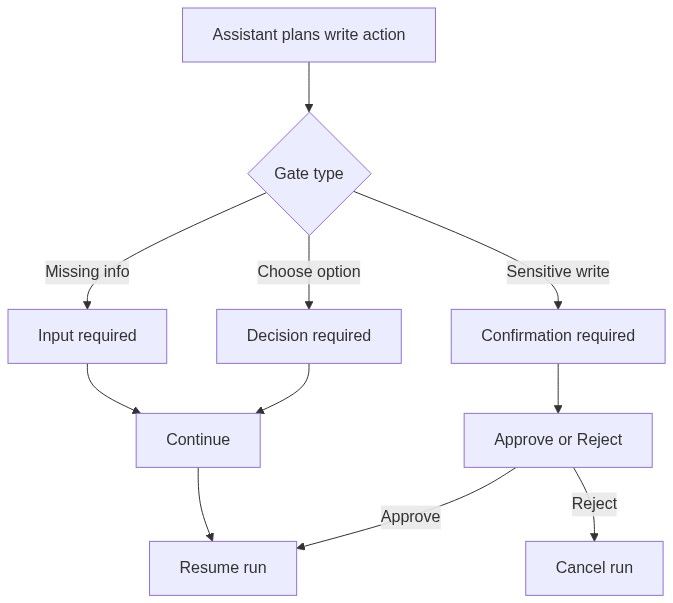
Cancel run aborts the paused operation. Do not use New chat to cancel — use Stop (when streaming) or Cancel run on the approval card.
After you approve or reject, a resolution bubble records "You approved this action" or "You rejected this action".
Input required
Use when the assistant needs parameters you did not provide — open questions, missing pursuit name, ambiguous dates.
Decision required
Use when multiple valid paths exist — which tender to open, which team scope, which requirement batch to import.
Confirmation required
Always read the summary line by line before approving.
Examples that require confirmation:
Non-exhaustive — treat every amber card as binding.
What the assistant can do
Reads and acts across the platform within your permissions:
Actions respect:
Team membership — only data for teams you belong to
Subscription limits — pursuit caps, credit balance, integration gates
Approval gates — writes pause until you confirm
What the assistant cannot do
Caution: Do not paste passwords, API secrets, or personal data unrelated to the bid into chat. The assistant is for procurement workflow — not a secrets vault.
Tool steps — "What I am doing"
Expand What I am doing on assistant messages for transparency.
Each step shows:
Each step shows an icon and a plain-language label (for example Update company profile, not technical jargon).
- Status: In progress, Queued, Completed, or Could not complete this step
- Optional detail lines — search query, project name, result counts
- Source links opening in new tabs
Panel auto-expands while steps run; collapse manually if you prefer a cleaner thread.
Effective prompt patterns
Be specific about team, pursuit title, country, CPV, and deadlines — especially when you belong to multiple teams.
Tender discovery
Search tenders in Romania for CPV 45310000 published in the last 14 days with estimated value above 500000 EUR.Pursuit status, settings, documents
Open pursuit "{exact title}" and list requirements still missing an owner.Read our company profile and banking details — flag empty fields required for Romanian public tenders.In the active pursuit, list required documents not yet uploaded.Be specific about team, pursuit title, country, and CPV. Use Maximum intelligence for multi-step chains; expect multiple approval cards.
Queued messages
Sending while the assistant is still replying queues your message (FIFO) instead of interrupting.
When the assistant finishes, queued messages send automatically in order unless you stopped the run.
Read-only teammate sessions
Recents includes teammates' chats. Opening another member's session is read-only:
Composer disabled
Cannot send, queue, stop, or approve
Rename and delete disabled in session menu
Start New chat for your own writable session.
Use read-only mode to learn prompt patterns — not to execute actions on their behalf.
Credits and subscription limits
The assistant reads limits; it cannot override them. Team admins handle billing — Billing.
Safety checklist
Read Confirmation required summaries before Approve
Verify active team in sidebar before settings or pursuit writes
Regenerate documents after assistant updates company profile or banking
Reject if the summary does not match your intent
Use Stop or Cancel run instead of abandoning via New chat mid-approval
Do not paste secrets into chat
Re-check PDFs and compliance answers — assistant output is a draft until you validate
Troubleshooting
After a failed run: Stop → read the last failed step in What I am doing → fix data in UI → retry with a narrower prompt (one module, one pursuit).
During Getting started and First pursuit, the assistant audits settings, summarizes gaps, and starts quotations — kanban moves and external submission stay in the UI.
FAQ
Does the assistant automatically apply changes?
No. Sensitive writes show Confirmation required (or input/decision cards). Nothing changes until you Approve or Continue.
Can I trust requirement text the assistant adds?
Treat it as a draft. Always verify against authority PDFs in Questionnaire and In-depth analysis sources.
Why did my message queue instead of sending?
The assistant was still streaming a reply. Queuing preserves order. Use Stop if you need to cancel the current run first.
Will the assistant delete data without asking?
Destructive actions require Confirmation required. If you Reject, the run cancels with no delete.
How do I cancel mid-run?
Stop when composer is empty and assistant is streaming. Cancel run on approval cards. Do not rely on navigating away without stopping.
Related articles
Dashboard (Home)
Dashboard assistant
Assistant session
New chat
Search chats
Getting started workflow
First pursuit workflow
Team settings
Scheduled tasks
Billing