Construction standard forms
Overview
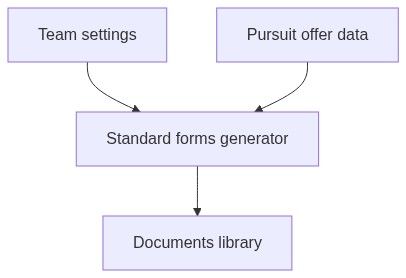
Construction standard forms generates country-specific authority forms for works pursuits — eligibility declarations, DUAE, financial offer forms, and dozens of templates in the country pursuit profile. Forms auto-fill from team settings and pursuit offer data, then export to Documents library.
Requires works pursuit type and a supported country rule set (e.g. Romania with forms across qualification, technical, and financial volumes).
Tip: Before bulk export, confirm you have:
Pursuit type = works and country set on Overview
All three Team settings core sections complete
Financial offer priced for Vol. III totals
Uploaded authority form PDFs for Classify workflow (optional)
Legal review scheduled — auto-fill is not sign-off
Caution: Bulk Export to Documents with empty banking leaves "complete" placeholders across every form.
When this module appears
How to open
Construction standard forms opens in the full pursuit layout with the complete page header — Classify Forms, Export to Documents, and volume stats. It is not shown in the Home assistant preview panel. Use Documentation → Construction standard forms from the pursuit sidebar for generation and classification.
While you chat on Home, the assistant can open other pursuit modules in the preview dock — including a native In-depth analysis results panel (not an embedded pursuit page in an iframe) and an embedded Documents table.
In-depth analysis reuses the same result cards and progress layout as Reconnaissance → In-depth analysis on the full page, without the document list column, inner Analysis section header, or PDF citation pane.
The preview has no document list, extraction category picker, task history, or PDF citation pane — source pills do not open tender pages in the dock. Run again and View previous tasks require the full page. Use the preview to verify uploads and extracted BOQ or requirement data before you return here to Export to Documents. Construction standard forms itself always requires the full sidebar path above.
After export, generated files appear in the Documents library. Right-click any exported row and choose Rename when authority template names need clearer team labels — the rename dialog updates the display name for everyone without duplicating the file.
If the assistant has the documents preview open beside the chat, that table refreshes automatically when folders or files change — including when folders are created or deleted during bulk export, or when you rename a file from the context menu — so you can verify exports without leaving the conversation.
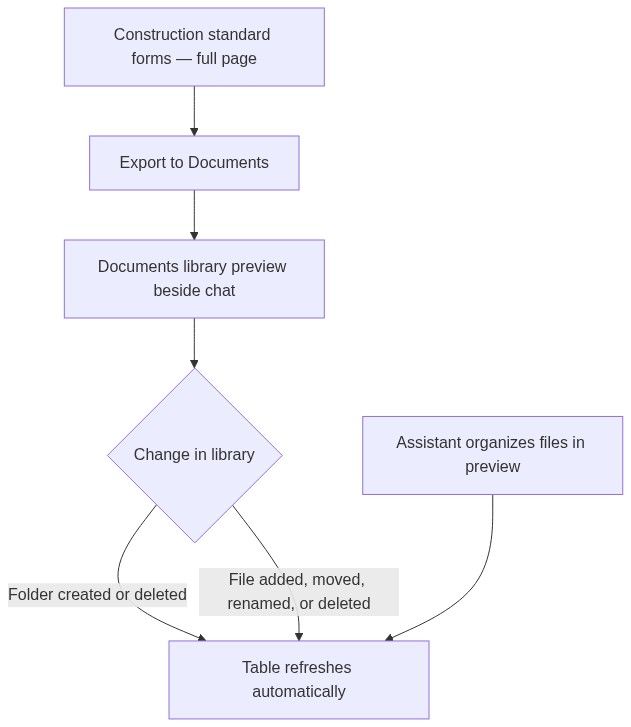
When Export to Documents creates new volume folders, the documents preview beside the chat picks them up on its own. The assistant performs file and folder changes outside the preview frame, so the table reloads even when the action runs under your signed-in user.
Layout

Header stats
Form list by volume
Detail panel
Key actions
Classification workflow
```mermaid
sequenceDiagram
participant U as User
participant F as Standard forms
participant AI as Classification
participant D as Documents library
U->>F: Start classification
AI-->>F: Matched templates
U->>F: Export to Documents
F->>D: Generated files
```
Bulk export
Progress on button while generations run — wait before leaving page.
Numbered workflow — works documentation pack
Set works + country on overview.
Complete team settings.
Price BOQ in Financial offer.
Upload authority PDFs to library.
Optional: Classify Forms (or Re-classify Forms after first run).
Review matches.
Export to Documents.
Open Documents library — Rename any exported file whose authority template name differs from your volume naming convention.
Open each form in Document editor — filler + review.
Final checkup + construction archive download.
Auto-fill source chain
Empty and processing states
Downstream dependencies
Edge cases
FAQ
Supplies pursuit — where are forms?
Use Document templates + library — not this module.
Regenerate after settings change?
Re-generate affected forms; old files remain until deleted.
DUAE auto-fill?
Depends on country profile field mapping.
Archive vs library?
Archive is checkup ZIP; library is living folder.
Classify credits?
AI classification may consume credits.
Multiple languages?
Templates per language in team knowledge.
Can I open construction standard forms in the Home assistant preview?
No. The preview panel covers modules like overview, documents, In-depth analysis, and financial offer — but not construction standard forms. Open Documentation → Construction standard forms from the pursuit sidebar for Classify Forms, Export to Documents, and bulk generation.
Can I review in-depth analysis results while preparing standard forms?
Yes. Ask the assistant to open In-depth analysis beside the chat. The native results panel shows the same extraction cards and progress layout as the full page — including BOQ and submission requirements — with live progress, Stop, Import selected, No analysis yet, load/error states, or a Partial results warning. There is no document list column, inner Analysis section header, or PDF citation pane. Run again, View previous tasks, and Retry with same documents require the full Reconnaissance → In-depth analysis page. Source pills do not open PDF previews in the dock. Use the preview to confirm extracted data before you Export to Documents here on the full page.
Where do exported forms appear?
In the Documents library. If the assistant preview already shows documents, the table refreshes when folders or files are added, moved, renamed, or deleted — including new folders created during bulk export.
Can I rename exported forms after bulk export?
Yes. In the library, right-click a ready file row and choose Rename. The dialog title is Rename with Update the display name of this document for your team. Rename is hidden for OCR placeholder rows and disabled while a file is still processing — same rules as other library files. See Documents library — Rename a document.
How do I confirm bulk export finished in the assistant?
Keep the documents preview open beside the chat while Export to Documents runs. When generation completes, new folders and files appear in the table on their own. If the table looks stale, close and reopen the preview from the chat, or open the full documents page.
Related articles
Financial offer
Documents library
Document editor
Company profile
Final checkup
Dashboard assistant
Pursuit overview
In-depth analysis — results