Onboarding
Overview
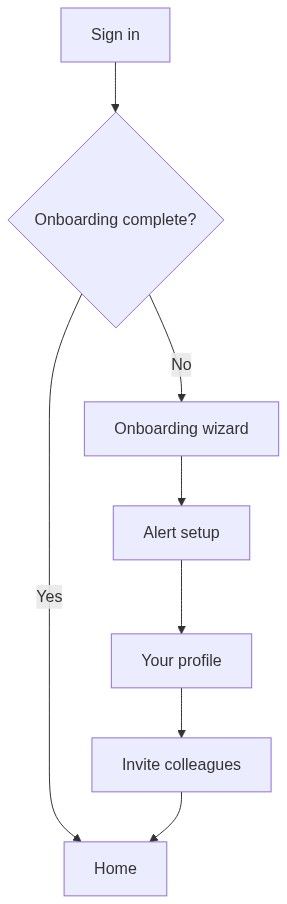
Onboarding is the guided setup wizard that runs after your first registration (or first sign-in while setup is incomplete). It configures tender alerts, captures organisation and personal context, and optionally invites colleagues — so when you reach Home the product already knows what you care about and who you work with.
Onboarding is not a substitute for full Team → Settings. It seeds data quickly; legal bid fields (company profile, legal representative, banking) still belong in team settings before your first pursuit.
Tip: Have these ready before you start:
Your company website (helps suggest organisation name, logo, and CPV codes)
CPV codes or keywords that describe what you bid on
Colleague email addresses (one per line) if you want to invite now
5–10 minutes uninterrupted — incomplete onboarding redirects you back on every sign-in
Important: Until onboarding is finished, Tendersight redirects you to the wizard on each sign-in. Finish or explicitly skip optional steps so you can use Home and the rest of the product normally.
When onboarding runs — and when steps are skipped
Wizard layout
The wizard uses a stepper with up to three steps:
You can click earlier steps in the stepper to go back; advancing saves the current step first.
Footer actions:
Step 1 — Alert setup
Configure CPV-based tender monitoring and see an estimated daily notice volume.
What this step creates
Selecting CPV codes (and optional keywords) creates your first alert ruleset — the foundation for Opportunities → Alerts notifications.
How to complete alert setup
Enter your company website if not already filled.
Click lookup/enrich controls to suggest organisation name, logo, and CPV codes from your site (optional but recommended).
Add CPV codes via the filter dialog — pick industries you bid in.
Optionally add keywords to narrow matches.
Review the estimated daily volume indicator.
Click Continue.
Caution: Skipping alert setup leaves you without automatic tender discovery until you create a ruleset under Opportunities → Alerts → New ruleset. See Create alert.
Step 2 — Your profile
Tell Tendersight about you and your organisation so recommendations and defaults match your work.
Fields
Primary interests (examples)
Interests you can toggle include tender alerts, product quotations, requirement extraction, technical offer, financial offer, document AI, dashboard assistant, market intelligence, and more. Select what you plan to use — this does not enable paid features by itself.
Domain auto-join
If your email uses a corporate domain (not a common free provider), you may see:
"Allow @yourcompany.com colleagues to join automatically"
When enabled, colleagues registering with the same email domain can join your team without a manual invite.
Important: Organisation name here is not the legal name on bid PDFs. Complete Team → Settings → Company profile before creating a pursuit. See Company profile.
How to complete your profile
Confirm or edit Organisation name (logo may appear after website enrichment).
Set Organisation website if missing.
Choose Your role from the dropdown.
Toggle Primary interests chips.
Select Organisation size from the range list.
Decide on domain auto-join if shown.
Click Continue.
Step 3 — Invite colleagues
Optional unless you skip — sends email invitations to join your default team as Collaborator.
How to invite colleagues
Enter colleague email addresses — one address per line.
Click Finish (or Skip to send no invites).
Invitations dispatch when onboarding completes. Invalid or duplicate addresses may be skipped with a warning toast; valid addresses still receive invites.
Tip: You can invite more people later from Team → Members. Skipping here does not block onboarding completion.
This step is hidden when you registered through a team invitation — you are already joining an existing team.
Completing onboarding
When you click Finish on the last step:
Current step data saves.
Onboarding marks complete on your account.
Toast: "Profile saved" / "Welcome to Tendersight! Your dashboard is ready."
You land on Home with the dashboard assistant.
Your default team is active. Open Team overview for the getting-started checklist: team settings, inventory, first pursuit.
Onboarding vs team settings vs profile
Edge cases
FAQ
Can I skip onboarding entirely?
You must finish the wizard (optional steps can be skipped). Incomplete accounts cannot stay on Home permanently.
Does onboarding replace company profile?
No. Onboarding seeds organisation context. Legal bid data lives under Team → Settings.
I joined via invitation — which steps do I see?
Usually Alert setup and Your profile; Invite colleagues is skipped.
Can I edit alert CPV codes later?
Yes. Open Opportunities → Alerts and edit or create rulesets anytime.
What if I pick wrong primary interests?
They only affect personalization hints. Change them later by contacting support or updating preferences where available — they do not lock features.
Where do invited colleagues land?
They accept the email link, register or sign in, and join your team. See Team members.
Related articles
Register
Getting started workflow
Create alert
Company profile
Team members
Dashboard (Home)