Company logo
Overview
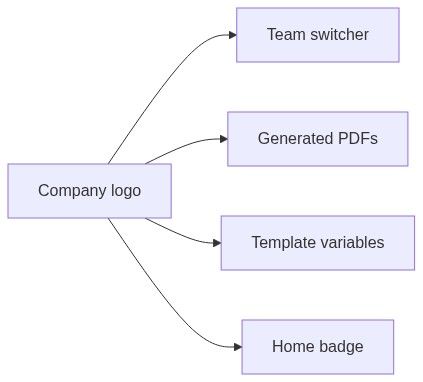
Your company logo is the branding image Tendersight places on generated bid documents, in the team switcher, and in selected assistant surfaces. Upload it in Team → Settings after you define Company profile so colleagues recognize the legal entity behind the workspace.
The logo is optional for team settings completion — the getting started checklist cares about company profile, legal representative, and banking only. Upload the logo before your first branded export if headers and switcher identity matter to reviewers.
Tip: Before you upload, confirm:
File is PNG or JPEG/JPG under the 5 MB limit
Square or near-square artwork works best in circular crops
Transparent PNG preferred for white form backgrounds
Logo matches the legal entity in company profile (no client trademark on wrong team)
Caution: Remove logo in the edit sheet deletes immediately — there is no confirmation dialog.
Where to find it
Team → Management → Settings — third section in the grid (after Team name and Company profile).
Subtitle: "Logo used in your documents and communication."
How this section differs from others
Most settings sections use cog icon + clickable rows that open an edit sheet.
The logo section uses a logo area:

Read view
While data loads:
Loading pulse — 80×80 gray block
When loaded:
You cannot open the sheet by clicking the preview — use the cog icon.
Edit sheet — Update logo
Description: "Upload a new logo for your team."
Preview area (top of sheet)
The preview area changes by state:
Remove logo deletes the stored logo immediately when clicked — not on Save. No confirmation step.
Upload dropzone
Heading: Upload logo
Hint: "Maximum file size: {size}" (5 MB)
Unsupported or oversized files: toast Something went wrong — "Some files were not added because they are not supported or exceed the maximum file size."
Footer
Cancel and Save changes. Save disabled while uploading or removing.
After save or remove
Read view refreshes after successful upload. Remove updates immediately from the sheet.
Where the logo appears
Does not replace legal text from company profile — logo is visual identity only.
Logo vs company profile
Always align logo with the correct team when managing multiple entities.
Workflow: first-time branding
Complete Company profile
Open Team → Settings → Company logo
Click cog → Update logo
Upload PNG (transparent if possible)
Save changes
Verify team switcher avatar
Generate a test document in a pursuit to confirm header placement
Permissions
Edge cases
What you cannot do
Use SVG, GIF, or WebP in the dropzone (PNG/JPEG only)
Crop inside Tendersight — prepare file externally
Set different logos per pursuit (team-wide only)
Upload authority logo onto notice records
Best practices
Use PNG with transparent background for clean placement on white forms
Keep file size reasonable — large images slow document generation
Square or near-square logos work best in the switcher circle crop
Re-upload after rebranding before submitting new bids
Do not skip profile completion just because logo is optional
FAQ
Is logo required before first pursuit?
No for checklist. Yes for branded exports on day one.
Does logo affect AI filler?
Indirectly — templates may embed logo URL; legal fields come from profile.
Can I use a rectangular banner?
Upload works; switcher crops to circle — expect clipping.
What happens on team delete?
Logo purged with team data.
Troubleshooting
Related articles
Team settings
Company profile
Team name
Team entity
Document templates