Team settings
Overview
Team settings is where you define your organization's legal identity, banking, signatory, logo, and external quotation sources. Complete all required sections before creating your first pursuit so Tendersight can auto-fill authority forms, generate proposal PDFs, and populate compliance outputs from day one inside the pursuit workspace.
Settings are scoped to the active team. Each team you belong to has its own profile — switching teams in the sidebar shows a different settings page. Do not mix two legal entities in one team; create a new team when VAT, bank account, or signatory differ.
Tip: Before your first pursuit, confirm:
Company profile saved at least once
Legal representative saved at least once
Banking information saved at least once
Company logo uploaded if branded exports matter
Product quotation sources configured only if you use quotation import
Important: "Team settings complete" requires company profile + legal representative + banking — not logo or quotation sources. Logo and quotations are optional for checklist completion but may still matter for your bid workflow.
What this page is
A single page with six sections in a two-column grid on wide screens (stacks on mobile). Each section except Team name and Company logo follows the same interaction pattern for legal data: read view with clickable rows, cog icon in the header, and a side sheet for editing.
Why it exists
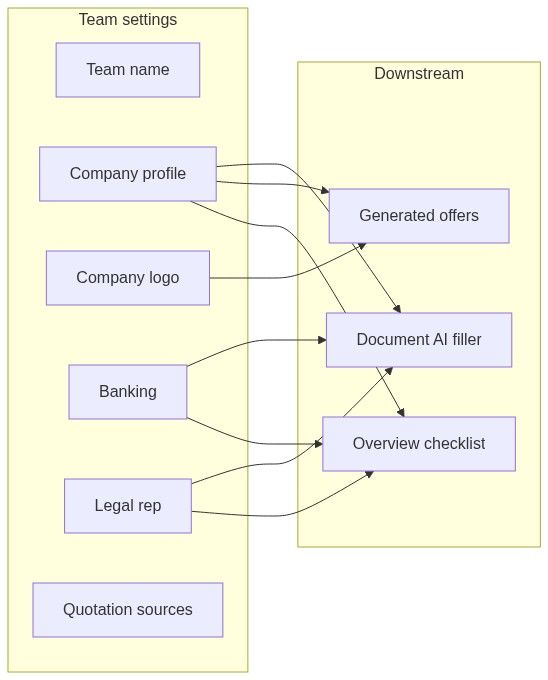
Public tenders require consistent legal, banking, and signatory data across dozens of forms. You enter it once here; Tendersight reuses it in pursuits, document auto-fill, generated offers, and the Home assistant.
When to use team settings
Recommended order (first-time setup)
Team name — workspace display label
Company profile — legal entity
Company logo — branding on documents
Banking information — IBAN, SWIFT
Legal representative — signatory
Product quotation sources — optional; technical offer quotation import
Steps 2, 4, and 5 together mark team settings complete on the overview checklist.
How to open
Layout: Team management layout (inner left navigation).
Page title pattern: "{team name} settings" in the browser chrome.
Shared UI pattern (editable legal sections)
Every editable section except Team name and Company logo uses this pattern:
┌─────────────────────────────────────────┐│ [⚙ cog] Section title ││ Section subtitle │├─────────────────────────────────────────┤│ ▌ Icon Field value or "No …" empty │ ← click row│ ▌ Icon Field value or "No …" empty │└─────────────────────────────────────────┘ │ │ │ └── Any row click → opens edit sheet └── Cog click ──────────→ opens same edit sheetThere is no inline editing on the read view. The sheet contains all fields for that section.
Section states
Section 1 — Team name
Not part of company profile. Controls workspace display name only.
Edit pattern differs: only the cog icon opens the sheet — rows are not clickable.
Full guide: Team name
Section 2 — Company profile
→ Full documentation: Company profile
Section 3 — Company logo
Different pattern — embedded update control, not cog + rows.
Subtitle: "Logo used in your documents and communication."
Not required for checklist completion. Downstream: switcher avatar, document headers.
Full guide: Company logo
Section 4 — Banking information
Cog + clickable rows — same as company profile.
Subtitle: "Information regarding the banking arrangements put in place for this team."
Required for checklist. Used in financial forms and document auto-fill.
Full guide: Banking information
Section 5 — Legal representative
Cog + clickable rows. Largest field set — identity, ID document, residence.
Required for checklist. Used in signature blocks and qualification annexes.
Full guide: Legal representative
Section 6 — Product quotation sources
Different pattern — list with search, cog dropdown menu, per-row actions, immediate toggle.
Used in pursuit technical offer → quotation import — not the static product catalog.
Full guide: Product quotation sources
Team settings completion
The platform treats settings as complete when all three saved sections exist on the team record:
When incomplete:
Team overview shows Getting started → Configure team settings as pending
Dashboard may show "Your team settings are incomplete"
Pursuit document filler warns which sections are missing
Generated PDFs may show "complete" placeholder for empty identity fields
Logo and quotation sources do not block checklist completion.
Where settings data flows
Changing settings does not retroactively update already-exported PDFs — regenerate after edits.
Permissions
Edge cases
What you cannot do on settings
Edit market Analytics → Companies records from here
Share settings across teams automatically
Upload authority tender documents (those live on notices/pursuits)
Set pursuit-specific legal data (use pursuit notes; team settings are team-wide)
FAQ
Must logo be done before first pursuit?
No for checklist. Yes for branded PDF headers if you export immediately.
Are quotation sources required?
No. Only if you use quotation import in technical offer.
Can collaborators edit settings?
Typically yes for profile sections; team name often owner/admin only.
Does updating settings fix old PDFs?
No. Regenerate documents in the pursuit.
Company profile vs team name?
Team name = workspace label. Company profile = legal entity on forms.
Troubleshooting
Related articles
Company profile — full field guide
Company (two meanings)
Team overview
Team members
Create pursuit from notice
How information flows
First pursuit workflow