Scheduled tasks
Overview
Scheduled tasks run the Home assistant automatically on a timetable. Each task stores a name, a prompt, and a schedule — useful for weekly pipeline summaries, alert digests, recurring tender searches, or batch updates without opening a new chat every time.
Tasks execute with your permissions at run time. They can read and write platform data without asking again each run. Treat prompts like instructions you would give a trusted colleague with your login.
Tip: Before enabling write-heavy tasks, confirm:
You tested the prompt manually in New chat first
The schedule timezone hint matches when you expect runs
Colleagues know unattended tasks exist on the team
You named tasks clearly so others recognize them on the list
Caution: A task that says "create pursuits for all new alert matches" will create pursuits if your permissions allow — there is no per-run approval unless the assistant hits a Needs input step.
How scheduled tasks fit Home and team
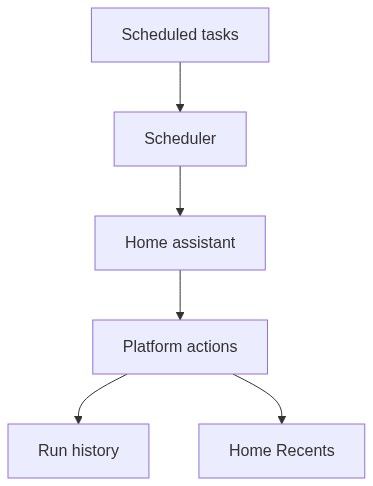
Tasks are team-scoped — you need an active team selected. The list lives under team management but links from the Home chat sidebar.
How to open
Page header
Scheduled tasks with description:
"Recurring prompts the assistant runs unattended on a schedule. Runs act with your pre-authorized permissions and will perform actions, including writes, without asking."
When tasks exist, Add scheduled task appears top-right. When empty, the empty state includes its own add button.
Task cards
Each task is a card with a dashed border. Disabled tasks appear faded.
Right-click the card (or use the context menu) for actions.
Card content
Context menu
Delete success: Scheduled task deleted.
Delete error: Something went wrong — "We couldn't delete the scheduled task. Please try again."
Caution: Delete is immediate — no undo dialog. Use Disable for temporary pauses.
Empty state
Clock icon · No scheduled tasks yet · "Add one to let the assistant work on a schedule." · Add scheduled task
Add scheduled task panel
Side panel. Description: "This task runs unattended and acts with your pre-authorized permissions."
Cancel | Create task
Success: Scheduled task created — "The assistant will run it on the schedule you set."
Validation: Please check the form
Edit scheduled task panel
Details tab — same fields as create. Cancel | Save changes
Update success: Scheduled task updated
Run history tab — past executions (20 per page):
Empty: "No runs yet" — runs appear after the first execution.
Schedule builder
Bordered card in the form. Start with Schedule type:
Times use the server timezone shown in the hint under time fields — not your local browser zone unless they match.
What happens when a task runs
```mermaid
sequenceDiagram
participant Scheduler
participant Assistant
participant Platform
Scheduler->>Assistant: Run stored prompt
Assistant->>Platform: Actions with creator permissions
Platform-->>Assistant: Results
Assistant-->>Scheduler: Run status recorded
Note over Platform: May appear in Home Recents
```
Scheduler fires at the configured time (if enabled).
A new assistant session starts with your prompt.
The assistant acts with your team's authorization — including writes.
The card updates with run status.
Needs input means the assistant hit an approval step — open the thread from Run history.
The conversation may appear in Home Recents.
Example prompts (safe → risky)
Start read-only; add writes only after reviewing Run history.
Live updates
If someone else on your team changes tasks, your list refreshes automatically — useful when multiple administrators manage automation.
Permissions
If your role is downgraded after creating a task, later runs may fail with permission errors — check Failed status and Last error.
Edge cases
What you cannot do
Run tasks without an active team (for team-scoped actions)
Approve writes per run from the card (open thread instead)
Restore deleted tasks
Assign a task to run as another user's permissions
Schedule non-assistant cron jobs (exports, sync) from this page
Best practices
Start with read-only prompts before write actions
Use Disable instead of delete when pausing temporarily
Check Run history after the first run
Name tasks clearly for colleagues
Document high-impact tasks in your team's runbook
Avoid minute-level schedules unless necessary — credit and load add up
FAQ
Who owns a task's permissions?
The user who created it — runs act as them.
Can collaborators create tasks?
If they can open the page, yes — same permission model.
What is Needs input?
The assistant stopped for approval or missing data. Open Open thread from run history.
Do tasks use AI credits?
Yes when the assistant invokes AI features — monitor Team overview credit charts.
Can I duplicate a task?
No built-in duplicate — create new and copy prompt manually.
Troubleshooting
Related articles
Dashboard assistant
New chat
Team settings
Team members
Team overview