Product categories
Overview
Product categories organize your team catalog into logical groups — servers, networking, furniture, services, and any taxonomy your bidding team uses. Each category can store business knowledge text that guides AI during product import and pursuit automapping.
Categories are optional but strongly recommended before bulk imports. Assignment happens during datasheet, CSV, and user manual wizards, on manual product create, and via Quick assign on the products list.
Tip: Before your first large import, confirm you have:
Planned 5–20 stable category names (avoid one category per SKU)
Drafted business knowledge for complex families (certifications, terminology, margins)
Categories created on Inventory → Product categories or inline during import
Team agreement on naming — renaming is fine but historical assignments keep old labels until edited
Important: Deleting a category unassigns products — it does not delete products. They show "No category" on the list.
Why categories matter downstream
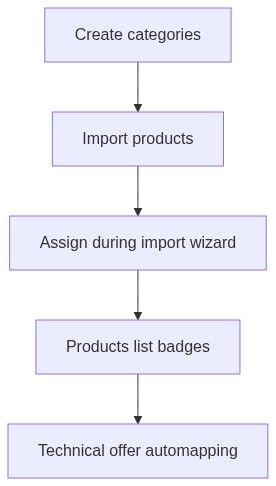
Three ways to assign categories
Path A — During import wizard (recommended for bulk)
Use on step 2 of datasheet, CSV, or user manual flows.
Upload files or CSV on step 1.
On Assign categories, drag items from Uncategorized to category drop targets.
Or multiselect → Assign to category.
Continue — uncategorized items still import.
See Category assignment during import below.
Path B — On manual product create
Open Manual input from the hub.
Pick category from combobox on basic information section (optional).
Save product.
Path C — After import on products list
Open products list.
Select rows → Quick assign → Assign to category or Remove category.
How to open category management
Page title: Product categories
Layout — header
Category cards grid
Responsive grid (1 / 2 / 3 columns) when categories exist.
Card header
Card body
Card actions
Create category sheet (numbered)
Click Create category (header or empty state).
Enter Category name * (1–255 characters).
Optionally enter Business knowledge — textarea, 4 rows.
Click Create — toast "Category created successfully"; list refreshes.
Placeholder for business knowledge: "Enter business knowledge, context, or guidelines for this category (optional)"
While saving: button shows Creating...
Edit category sheet (numbered)
Click Edit on a card.
Update name and/or business knowledge.
Click Update — toast "Category updated successfully".
Delete category dialog
Delete Category confirms; Cancel closes.
Deletion may be blocked with error toast if server validation fails.
Pagination
When many categories exist, pagination below grid. Page index in URL query ?page=N.
Empty state
Loading and error states
Category assignment during import
During datasheet, CSV, and user manual wizards, step 2 opens expanded assignment UI.
Layout
Two-column grid on large screens:
Interactions (numbered)
Search uncategorized items or categories.
Drag one item to a category — or select many → Assign to category combobox.
Remove assignment: drag to Uncategorized or assign Uncategorized via combobox.
After drag assign, toast may include Undo.
Create category opens inline sheet (680 px).
Continue with {N} items proceeds to review step.
Keyboard: A select all filtered uncategorized; Escape clear selection.
App sidebar collapses automatically on this step.
Empty assignment states
Business knowledge — what to write
Free-text per category. Examples:
Typical certification requirements for this product family
Default warranty assumptions
Terminology your team uses vs authority terminology
Margin or pricing policies (internal AI reference)
Shown during import assignment (category expand) and informs AI during processing — not shown to contracting authorities directly.
Permissions
No role distinction on category management in current UI.
Best practices
Create categories before first bulk import — assignment step is much faster.
Stable category names — pursuits reference historical assignments.
Fill business knowledge for complex families — improves AI extraction.
Avoid over-splitting — 5–20 categories cover most teams.
Review unassigned products after import — "No category" badge on list.
Use Path C Quick assign to fix stragglers without re-importing.
What you can and cannot do
You can
Create categories without products
Leave business knowledge empty
Assign one category per product
Bulk assign from products list
You cannot
Assign one product to multiple categories
Delete products by deleting a category
Sync WooCommerce categories automatically into these team categories (integration mapping is separate)
FAQ
Are categories required?
No. Products and imports work without them.
What happens when I delete a category?
Products become uncategorized. Nothing is deleted.
Can one product belong to multiple categories?
No — at most one category per product.
Do categories sync from WooCommerce?
External sync uses integration mapping, not necessarily these team categories.
Can I assign categories in bulk after import?
Yes — products list → select rows → Quick assign.
Is there a category limit?
Name max 255 characters. List is paginated for many categories.
Troubleshooting
Related articles
Products list
New product hub
Manual product create
Datasheet upload
CSV import
User manual upload
Team product entity