Manual product create
Overview
Manual input lets you type a single product directly into your team catalog — name, SKU, price, category, specifications, and an optional datasheet PDF. Use it for one-off items, prototypes, or products where you already know every field and do not have a manufacturer document to parse.
The form is a single page (no stepper). Save creates the product immediately, or queues AI processing when that toggle is on. The new row appears on products list with source badge Manual input.
Tip: Before you save, confirm you have:
A unique SKU your team will recognize in pursuits and re-imports
At least one complete technical or operational specification row
Correct price type — selling vs acquisition
Optional category selected (or plan to assign via Quick assign later)
Datasheet attached if you want specifications viewer with PDF highlights
Important: Manual create accepts one datasheet file. For multiple manufacturer PDFs in one batch, use Datasheet upload from the new product hub.
Manual input vs other catalog paths
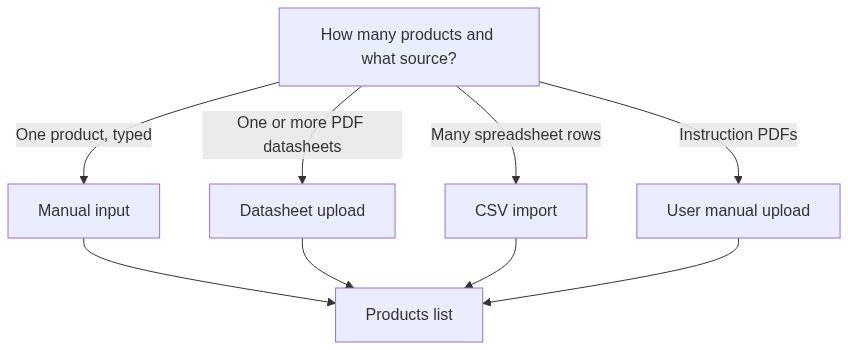
How to open
Page heading: New team product (back arrow → products list)
Form walkthrough — numbered steps
1. Basic information
Category combobox: search filter, No category found when empty, disabled while categories load.
2. Specifications
Intro: "At least one technical or operational specification is required"
Technical specifications — dynamic name/value rows:
First row always present
+ on last row when both fields filled — adds row
Trash removes row when more than one exists
Operational specifications (Optional) — same row pattern; start with Add operational specification button.
Global rule: At least one complete row in either technical or operational before save.
Form-level error: "At least one technical or operational specification is required"
3. Datasheet (optional)
Enables specifications viewer after save. Replace later via list Content sheet.
4. Enable AI processing
Unavailable: "Your current subscription doesn't include AI-assisted product processing."
5. Save
Click Save product — validates all fields, redirects to products list. Disabled while submitting.
Save behavior
Success paths
Error paths
Field-level errors appear under inputs.
Downstream use in pursuits
Manual products participate fully in pursuit workflows:
Sparse manual specs reduce automapping quality — attach datasheet or enable AI when possible.
Permissions
\*Requires subscription feature and AI credits.
Best practices
Meaningful SKUs — appear in pursuits; CSV duplicate handling depends on them.
Correct price type — selling for bid prices; acquisition for cost-based work.
At least one strong technical spec — automapping matches requirement names to spec names.
Attach datasheet when available — enables viewer even if you typed specs manually.
Enable AI on supported plans — refines sparse entries into pursuit-ready specifications.
Assign category during save or via Quick assign — improves list organization and AI context.
What you can and cannot do
You can
Create with only operational specs (not only technical)
Leave category empty
Upload one datasheet at creation
Edit everything later via Content sheet
You cannot
Upload multiple datasheets in one manual save
Create multiple products in one form submission
Delete synced external products from this flow — they come from integrations
FAQ
Can I create a product with only operational specs?
Yes — at least one row in technical or operational, not both.
Is category required?
No. Uncategorized products show "No category" on the list.
What currency is the default?
USD pre-selected. Change before saving.
Can I upload multiple datasheets?
One per manual save. Use datasheet upload for batches.
Will manual products appear in pursuits immediately?
Yes, unless AI processing is enabled — then wait for processing task completion.
Does manual input consume external product sync quota?
No — quota applies to connected provider sync, shown on products list.
Troubleshooting
Related articles
New product hub
Products list
Product categories
Datasheet upload
Specifications viewer
Team product entity