Create standalone pursuit
Overview
A standalone pursuit is a bid workspace you start without picking a notice from Tendersight's catalog. You describe the opportunity yourself — title, type, country, owner, optional deadline and value — and optionally attach tender files you received offline. The result is the same pursuit workspace as a notice-linked pursuit: questionnaire, offers, documents, and final checkup modules all work identically afterward.
Use standalone when the buyer sent documents by email, the tender sits on a portal Tendersight does not monitor, you respond to a private RFP, or you need a workspace before the official publication syncs. The card on Team → Pursuits shows Source: standalone and no official notice identifier unless you type authority details manually.
Tip: Before you start the wizard, confirm you have:
Completed Team → Settings — company profile, legal representative, and banking — for document auto-fill
Selected the correct active team in the sidebar (team is fixed for the wizard)
Chosen the right pursuit type (works / supplies / services) — it controls sidebar modules
Selected the correct country — drives form volumes and country profiles
Assigned the bid owner (defaults to you)
Gathered tender PDFs to upload in step 2 if you plan in-depth analysis soon
Important: You cannot attach a standalone pursuit to a catalog notice later as a merge. If the tender appears in Opportunities → Notices, create a new notice-linked pursuit instead (Create pursuit from notice).
When to use standalone vs from a notice
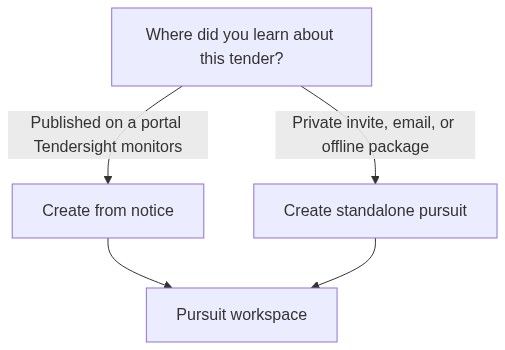
Caution: Choosing standalone when the notice is indexed means you lose automatic version tracking, official identifier links, and one-click Go to pursuit from the notice page.
How to open
You must belong to the team and have permission to create pursuits. If your plan limits active pursuits, creation fails with an upgrade message on the last step.
Wizard layout
Full-width three-step wizard inside the main app shell.
Top bar
Step indicator
The active step is highlighted; completed steps remain visible.
Footer (always visible)
While the next step loads: Please wait while we prepare the form.
Step 1 — Details (numbered)
Fields use a two-column layout on desktop: label and helper on the left, control on the right.
Team (read-only) — shows team name. Switch team in sidebar before opening the wizard if needed.
Owner (required) — searchable team member list; defaults to you. Avatar + name when selected.
Title (required) — pursuit name on kanban and sidebar. Use authority + subject + year for recognition months later.
Description (optional) — internal notes; not exported unless you copy into documents later.
Pursuit type (required) — Works, Supplies, or Services. With Country, controls which modules appear (technical offer, works offer, financial forms).
Country (required) — searchable EU country list. Sets procurement rules and form volumes.
Estimated value (optional) — amount + currency. Feeds pipeline totals on Team → Pursuits.
Deadline (optional) — calendar date + time (defaults 12:00). Powers dashboard deadline widgets.
CPV code (optional) — searchable catalog with infinite scroll. Code + name display; clearable.
Contracting authority (optional) — plain text buyer name. Not linked to analytics authority profile unless names match.
Continue stays disabled until title, type, country, and owner are valid.
Step 2 — Documents (numbered)
Optional but strongly recommended for in-depth analysis and AI document filling.
Open the dashed drop zone — Drop files here or click to browse.
Drag multiple files or use the file picker repeatedly.
Accepted: PDF, Word, Excel, plain text, OpenDocument, PowerPoint.
Review Selected files (N) list — each shows name, size, and Remove (trash).
Add or remove freely before Continue — nothing attaches until Create pursuit on step 3.
Helper: Attach tender documentation, specifications, or any relevant files. This step is optional.
Step 3 — Review (numbered)
Read the read-only summary table:
Click Create pursuit when satisfied — one click, no undo on the wizard itself.
Creating the pursuit — outcomes
Success
Toast: Pursuit created — Your standalone pursuit has been created successfully.
You land on Pursuit overview.
Card appears on Team → Pursuits in Active with Source: standalone.
Failure
Toast: Something went wrong — Our system was unable to create your pursuit. Please try again!
You stay on review step. Fix plan limits or network issues and retry.
What to do immediately after creation

Open Pursuit overview — confirm pursuit type and country; incomplete context blocks some modules.
Open Documents if you skipped files in the wizard.
Run In-depth analysis on tender PDFs to populate the questionnaire.
Follow First pursuit workflow for the full module sequence.
Standalone vs notice-linked (reference)
Permissions and roles
Owner assignment is limited to current team members.
Subscription gates
Best practices
Use a title that includes authority and subject — you will accumulate many pursuits over time.
Set deadline even if soft — dashboard and assistant reminders depend on it.
Upload full tender PDFs in step 2 so analysis does not wait on manual uploads inside the pursuit.
Match pursuit type and country to the actual procedure — Romania works ≠ Finland supplies in sidebar modules.
Assign owner to the bid lead before the team starts questionnaire work.
Prefer create from notice the moment the tender appears in the catalog — create a new linked pursuit rather than continuing standalone alone.
What you can and cannot do
You can
Create a pursuit with zero documents and upload later
Change owner after creation from pursuits list or overview
Edit type, country, and metadata on pursuit overview
Run the same modules as a notice-linked pursuit
You cannot
Link an existing standalone pursuit to a notice retroactively
Auto-sync deadline changes from a catalog you did not link
Share the workspace across two teams
FAQ
Are documents required in step 2?
No. You can create an empty shell and upload inside the pursuit later.
Can I change owner after creation?
Yes — pursuit card menu on Team → Pursuits or team section on pursuit overview.
Why is Continue disabled on step 1?
Usually missing title, pursuit type, country, or owner.
Will standalone pursuits appear in analytics as notices?
No. They are internal workspaces unless you later create a notice-linked pursuit for the same opportunity.
Can I switch team mid-wizard?
No. Team is read-only. Switch in the sidebar, return to Team → Pursuits, and start again.
What if I picked wrong pursuit type?
Edit on Pursuit overview — sidebar modules may refresh; review before heavy questionnaire work.
Does standalone skip team settings requirements?
No. PDF auto-fill still needs company profile, legal representative, and banking.
Troubleshooting
Related articles
Pursuits list
Create pursuit from notice
Pursuit
Notice (Tender)
Team settings
First pursuit workflow