Accept team invitation
Overview
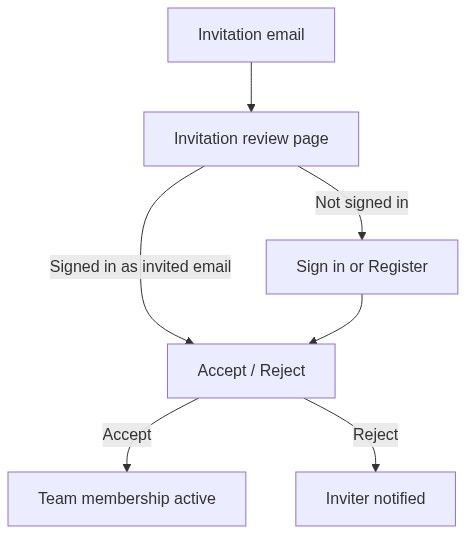
When a colleague invites you to their team, you receive an email with a link to review the invitation and choose Accept or Reject. Accepting adds you to that team with the roles specified in the invite; rejecting notifies the inviter and does not create membership.
Invitations are the primary way colleagues join an existing workspace without creating a duplicate team. They are tied to a specific email address — the one the administrator typed in Team → Users.
Tip: Before you accept, confirm:
The link came from a colleague you trust (official Tendersight email)
The team name on the card matches what you expected
Prospective roles fit the access you need (Administrator vs Collaborator)
You will sign in or register with the same email the invitation was sent to
Accepting is immediate — you can switch to the new team in the sidebar as soon as the success screen appears.
Important: Invitations do not grant owner status. Ownership transfers only through Transfer ownership by the current owner.
How invitations reach you
The invitation page uses a standalone layout — centered card on a minimal background. You do not need to navigate the full app first.
You may open the link before signing in. Signing in with the invited email simplifies acceptance; signing in with a different email will not match the invitation.
Invitation card — before you respond
Header
Tendersight logo
Title: You've been invited to join a team
Details table
Review prospective roles carefully:
If roles look wrong, click Reject and ask the inviter to send a corrected invitation from Team members.
Action buttons
While the request processes:
A progress bar appears at the top of the card
Both buttons disable until the server responds
Toasts
After you respond
The card switches to a confirmation state:
Green check icon with ripple animation
Title: Response submitted
Same confirmation message as the success toast
Back to application → Home
If you accepted
Your membership is active immediately
Open the team switcher in the sidebar
Select the invited team
You land in that team's context — pursuits, inventory, and settings scoped to that workspace
You do not need to wait for the inviter to approve again.
If you rejected
You are not added. The inviter can send a new invitation later if needed.
Path A — You already have a Tendersight account
Open the invitation link from email
Sign in if prompted — use the invited email address
Review team name and roles on the card
Click Accept
Switch to the new team in the sidebar
Complete any onboarding your administrator expects (settings are usually already done on established teams)
Path B — Register through an invitation
If you do not yet have an account, the Register page detects invitation context:
Complete the two-step registration:
Account — password and personal details
Company — organisation context for your user profile
After sign-in, the invitation flow continues — accept from the invitation card if you are not redirected automatically.
See Register for full registration detail.

Caution: You cannot register with a different email and accept the same invitation. The invitation is bound to one address.
Permissions after acceptance
Access depends on assigned roles, not on how you joined:
Owners are never assigned via invitation. If you need owner-level control, the current owner must transfer ownership after you are a member.
Full matrix: Permissions and access.
Where membership matters downstream
Removing you later revokes access immediately; your past pursuit contributions remain on the team.
Best practices
Accept only from links in official Tendersight emails or trusted colleagues
Use the same email the invitation targeted
Reject and ask for a re-send if roles are incorrect — do not accept and escalate privileges afterward
After joining, confirm the correct team is active before creating pursuits on notices
If you consult for multiple clients, ensure each invitation maps to the right team name
Edge cases
What you cannot do on the invitation page
Change the roles before accepting (inviter must re-send)
Accept for a different email address
Become team owner through accept alone
Preview pursuits or inventory before accepting
Accept on behalf of someone else
FAQ
Can I accept with a different email?
No. The invitation is tied to the invited address. Register or sign in with that email.
Can I change my mind after accepting?
Ask a team Administrator to remove you from Team → Users, or leave if self-removal is available on your deployment.
What if the link expired?
Ask the team admin to cancel the stale invite (if still pending) and send a new one from Team → Users.
Do I need my own subscription?
Usually the team's subscription covers members. Billing is managed by the team owner or administrators.
Can I belong to multiple teams?
Yes. Each invitation adds one more team to your switcher list.
What if I never received the email?
Check spam; ask the inviter to confirm the address; request a new invitation.
Troubleshooting
Related articles
Team members
Create team
Register
Team overview
Transfer ownership
Permissions and access