Team overview
Overview
Team overview is your workspace command center under Team → Overview (labeled Dashboard in the team management inner navigation). It answers three questions at a glance: Is the team ready to bid? How is the pipeline performing? What needs attention this week?
Open it after switching teams, at the start of a standup, when onboarding colleagues, or when you need a single page that connects onboarding, KPIs, analytics, and operational widgets — without opening every pursuit individually.
The page uses the team management layout with a resizable inner sidebar. Drag the edge to widen or narrow navigation. Data is scoped to the active team in the sidebar switcher — always confirm the correct team name before interpreting numbers.
Tip: Use overview weekly with this checklist:
Getting started steps cleared (or consciously deferred)
Submissions due reviewed for the next seven days
Action queue scanned for stalled pursuits
Credit usage checked if AI runs daily
Today's alert notifications triaged for new opportunities
Important: Overview numbers reflect this team only. Switching teams changes every KPI, chart, and table on the page.
How overview fits the team workspace
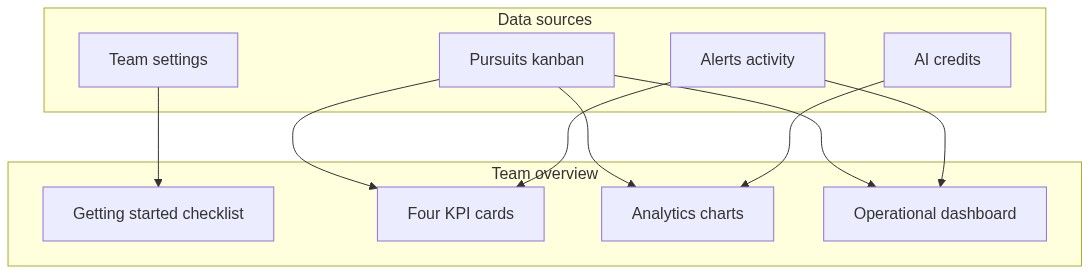
Overview reads pursuit, alert, and settings state — it does not replace pursuit editing. Click through to pursuits, notices, or settings from widgets when you need to act.
How to open
The global sidebar shows a subset of team features. Full management navigation (Users, Scheduled tasks, Integrations, Knowledge) appears when you land on any team management page including overview.
Page flow
Content scrolls top to bottom in four major zones. Each zone loads independently — loading placeholder placeholders appear while numbers and charts fetch.
Getting started checklist
Visible only while required onboarding steps remain incomplete. When everything required is done, the entire checklist disappears — it does not minimize.
Header: Getting started
Subtext: "Complete these steps to unlock the full tender workflow."
Progress bar: "{completed} of {total} required steps completed"
Steps
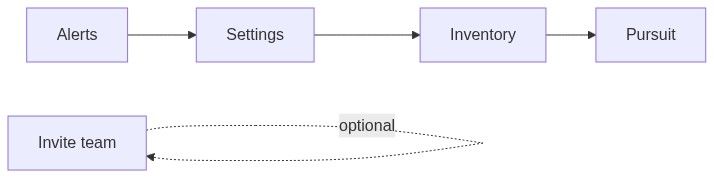
Each step shows an icon (checkmark when done, empty circle when pending), title, description, estimated minutes, and an action button. Optional steps show an Optional badge.
Configure team settings means all three saved sections: Company profile, Legal representative, and Banking information. Complete this before starting a pursuit so generated documents include your legal data from day one.
Completed steps show struck-through title and description.
KPI grid
Four cards in a row. Each shows a label, current value, change vs the previous period (colored arrow), and sometimes a small sparkline chart.
Submissions due is the best standup anchor — plan workload before deadlines slip.
New teams often show zeros until the first pursuits and submitted bids exist. That is normal, not a broken dashboard.
Analytics section
Charts and summary cards about win rate, pipeline value, and AI credit usage.
Row 1 — summary
Row 2 — pipeline
Row 3 — credits
Watch these if your team runs heavy AI document filling, in-depth analysis, or automapping. Spikes often correlate with pursuit document batches.
Operational dashboard
Pipeline health
Header: Qualified pipeline (EUR) and Total pipeline (EUR).
Stage tiles show count and value per pursuit stage. Sankey chart shows flow between stages.
Upcoming submissions
Two-month calendar with deadline markers.
Table columns:
Empty copy references the next few weeks. When empty, a link may point to Discover new tenders (notices browse).
Today's alert notifications
Table (5 or 10 per page) of matches from the last 24 hours:
Tender title (link)
Estimated value
Deadline
Empty when no recent alert activity — verify alert rulesets under Opportunities → Alerts.
Team contributions
Two-week bar chart of collaboration activity, plus a table of contributor names and counts.
Action queue
Prioritized work list inside the team:
When empty: Discover new tenders → notices browse.
Use as a standup agenda — highest incomplete pursuits surface first.
Collaboration pulse
Timeline of up to ten recent events:
Who did something
Short description of the action
Pursuit link
When it happened
Managers get visibility without opening every pursuit.
Who can see this page
Any member of the team. People not on the team cannot open the overview.
Brand-new teams see empty charts until data accumulates.
Using overview with Home assistant
Ask on Home:
"Summarize our pipeline"
"What pursuits are due this week?"
"How many alerts fired recently?"
The assistant uses the same active team as the switcher. Wrong team selected → wrong answer.
See Dashboard assistant.
Overview vs Home dashboard
Both respect active team context.
Best practices
Clear the getting started checklist before the first real bid
Review Submissions due every Monday
Watch credit usage if automapping or analysis runs daily
Use Action queue as the standup agenda
After merging companies or changing VAT, revisit settings — checklist may not reappear but documents need fresh data
Pair Today's alert notifications with pursuit creation on promising notices
Edge cases
What you cannot do on overview
Edit company profile inline (open Team settings)
Change pursuit stage from Sankey (open pursuit)
Invite members without going to Users
See another team's metrics without switching teams
Force-refresh notice sync from overview
FAQ
Why did my checklist disappear?
All required steps completed. Optional Invite your team does not block removal.
Why are all KPIs zero?
New team or no recent activity. Create pursuits and progress bids.
Dashboard vs Overview — same page?
Dashboard in inner nav is the same as Overview in the app sidebar.
Can collaborators see credit usage?
Typically yes on this page — useful for teams tracking AI budget together.
Missing inner nav items?
Transfer ownership and Delete team appear only for the owner.
Troubleshooting
Related articles
Team settings
Team members
Pursuits list
Company profile
Dashboard (Home)
Getting started workflow
First pursuit workflow