Connected services
Overview
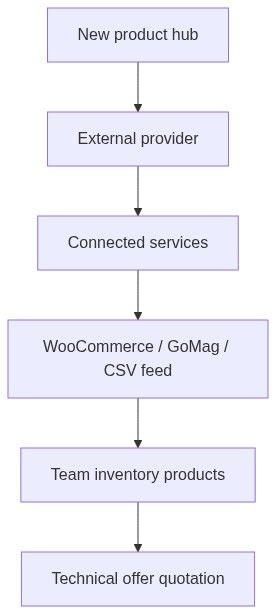
Connected services link external systems to your team — product catalogs (WooCommerce, GoMag, custom CSV feeds), knowledge sources, and notification channels. Connected product sources feed Team → Inventory → Products and quotation workflows in pursuits without manual re-entry of every SKU.
This is Path E on the new product hub for ongoing sync, not one-off file uploads. Ad-hoc batches still belong in datasheet upload, CSV import, or manual product create.
Tip: Before you connect a provider, confirm you have:
Administrator or connection rights on your team
Available external connected services slot on your subscription plan
Store URL and API credentials (WooCommerce keys, GoMag access, feed URL)
Product categories plan if you map imported SKUs to families
Test connection before relying on catalog in a live pursuit
Important: Synced products show badges like WooCommerce or GoMag on the products list. They cannot be deleted from the list UI — manage them through the integration or disconnect the service.
Connected services vs file import
How to open
Page title: Services connected to {team}
Page layout
Subscription limit alert
When your plan caps external provider count:
Upgrade via Billing if you need more connections.
Search and provider catalog
Provider grid — responsive 1 → 2 → 3 columns. Each card:
Initial load: six loading placeholder cards. Empty search: No integrations found — "Try a different search term"
Pagination at bottom when catalog spans multiple pages.
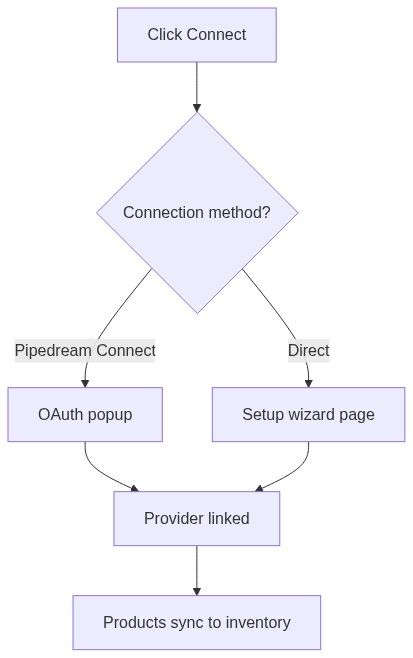
Two connection methods
Setup flows — numbered steps
Path A — WooCommerce
Search or browse to WooCommerce provider card.
Click Connect.
Enter store URL, consumer key, and consumer secret on setup form.
Click Test connection before saving.
Save — products sync into Inventory → Products.
Verify rows on products list with WooCommerce badge.
Path B — GoMag
Find GoMag on provider grid.
Click Connect.
Enter GoMag-specific credentials on direct setup page.
Test connection → save.
Monitor synced products on inventory list (GoMag badge).
Path C — Custom CSV feed
Select Custom CSV feed (or similar feed provider).
Configure feed URL, delimiter, and column mapping.
Run test import preview when available.
Save — feed products appear with Custom CSV feed or External feed badge.
Path D — Pipedream Connect (OAuth)
Click Connect on supported OAuth provider.
Complete popup authorization.
Return to Tendersight — provider shows Connected badge.
Configure any remaining options on Configured Services cards.
Configured services section
Below the provider catalog, when direct instances exist:
Configured Services
Active service instances with their configurations.
Grid of TeamConnectedServiceCard entries — one per instance with edit, test, and disable actions.
Use this section to:
Re-test stale connections
Edit credentials or mapping
Disable unused integrations to free plan slots
Supported capabilities
Providers declare capabilities on cards when enabled:
Product capability connections affect products list and product quotation sources.
Where connected data is used
Synced products participate in pursuit automapping like uploaded catalog items — but deletion and edit rules differ (see products list source badges).
External products usage limit
Products list shows under search:
"{current} out of {limit} external products included in your plan synchronized"
Distinct from connected services count — both may apply.
Permissions
Full matrix: Permissions and access.
Best practices
Test each connection before relying on it in a live pursuit.
One provider type, multiple instances — e.g. two WooCommerce stores when plan allows.
Disconnect unused integrations to free subscription slots.
Do not delete synced products on the list — fix mapping or disconnect service.
Combine with categories — assign business knowledge for synced families via Quick assign.
Set quotation source priority in team settings when multiple catalogs exist.
What you can and cannot do
You can
Connect multiple instances when plan permits
Search and paginate provider catalog
Reconnect OAuth providers after token expiry
Use synced products in technical and financial offers
You cannot
Delete WooCommerce/GoMag/feed products from inventory list row menu
Force instant full sync from help docs — schedule depends on integration
Exceed plan external service or external product caps without upgrade
FAQ
What is the difference between connected services and CSV upload?
Connected services maintain ongoing sync from a URL or store API. CSV upload is a one-time file import.
Why is Connect disabled?
Often plan limit reached — check subscription alert at top of page.
Products not appearing after connect?
Run Test connection; verify mapping; wait for sync cycle; check external products usage limit.
Can collaborators connect integrations?
Depends on team role — administrators typically required.
Do synced products use AI credits?
Initial processing may; ongoing sync follows integration rules. AI enrichment settings vary by connection.
How do I remove synced products?
Disconnect or disable the service — not row delete on products list.
Troubleshooting
Related articles
Products list
New product hub
Product quotation sources
CSV import
Billing
Permissions and access